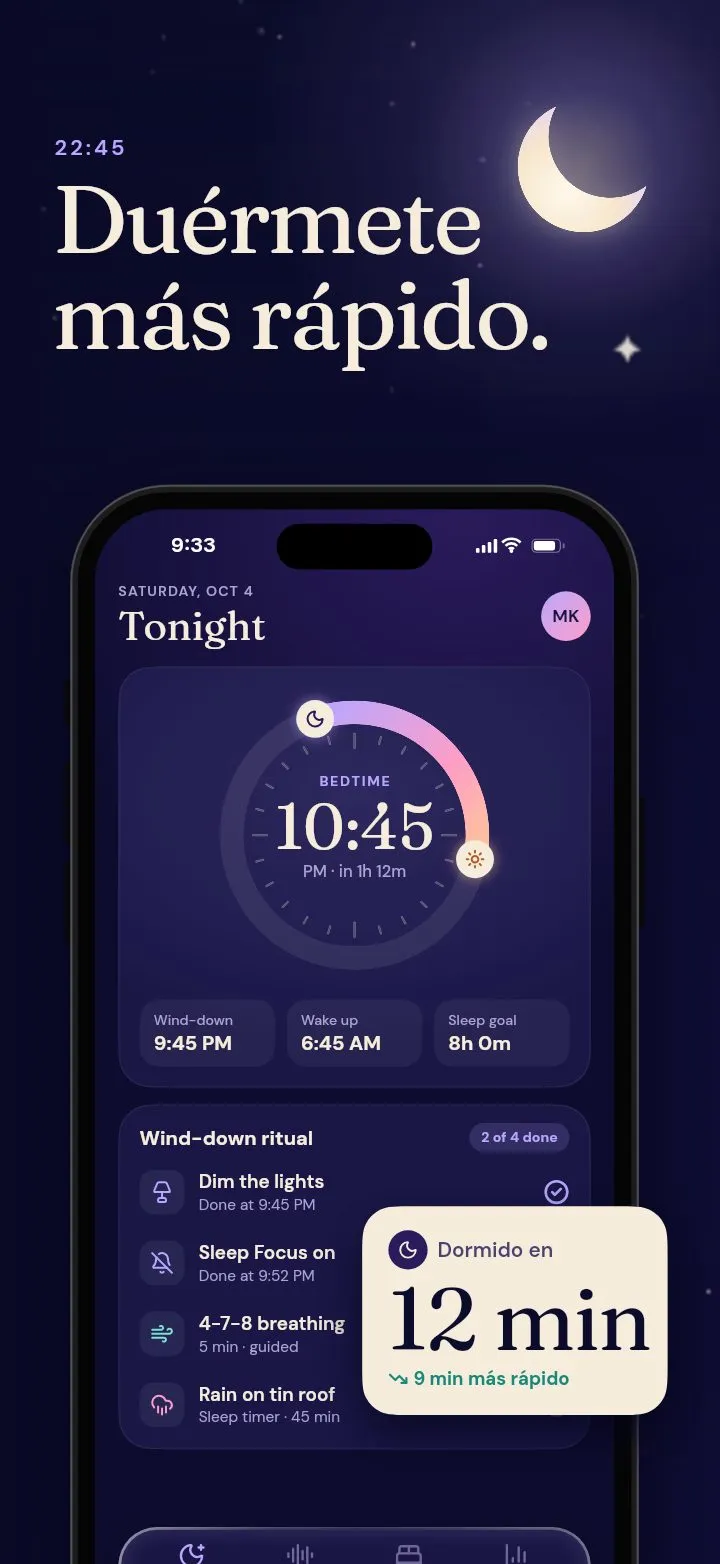
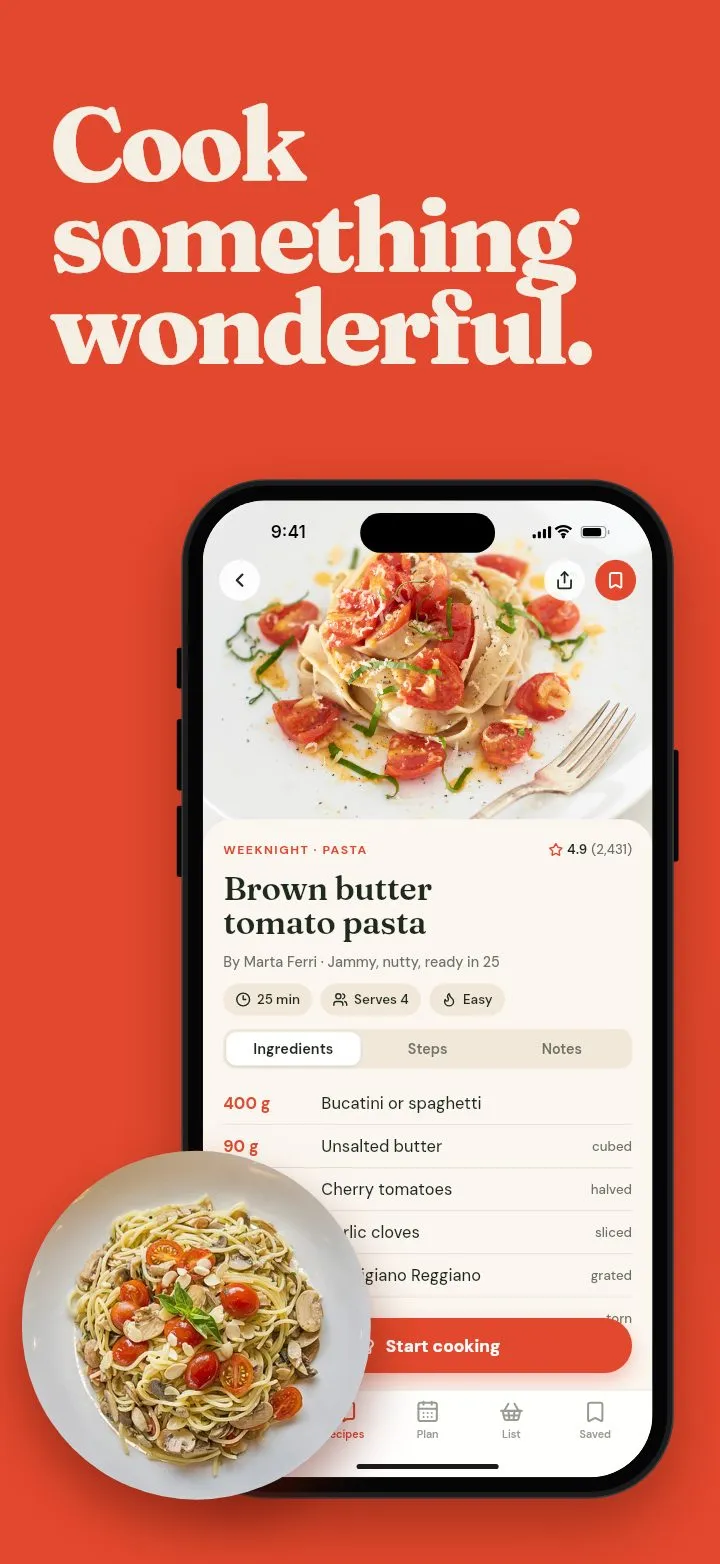
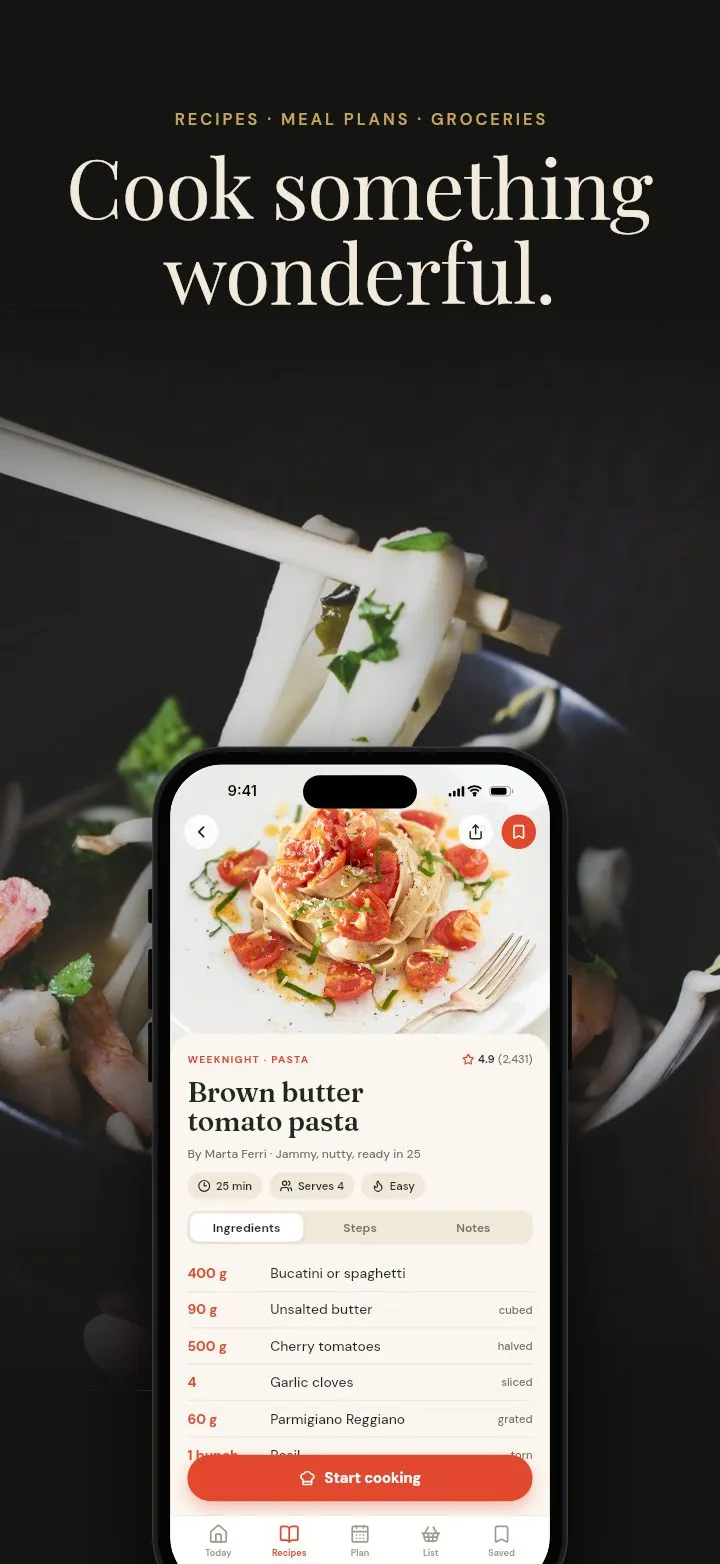
Screenshots for both stores
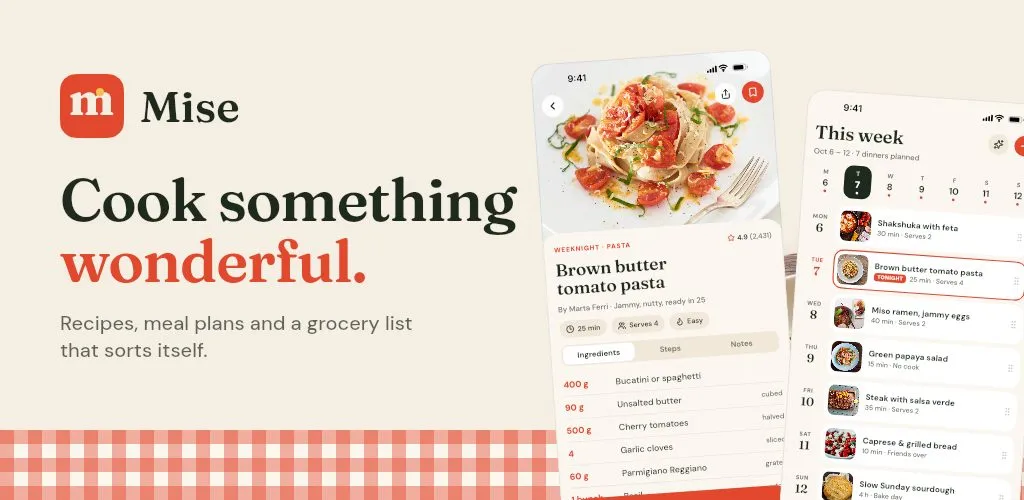
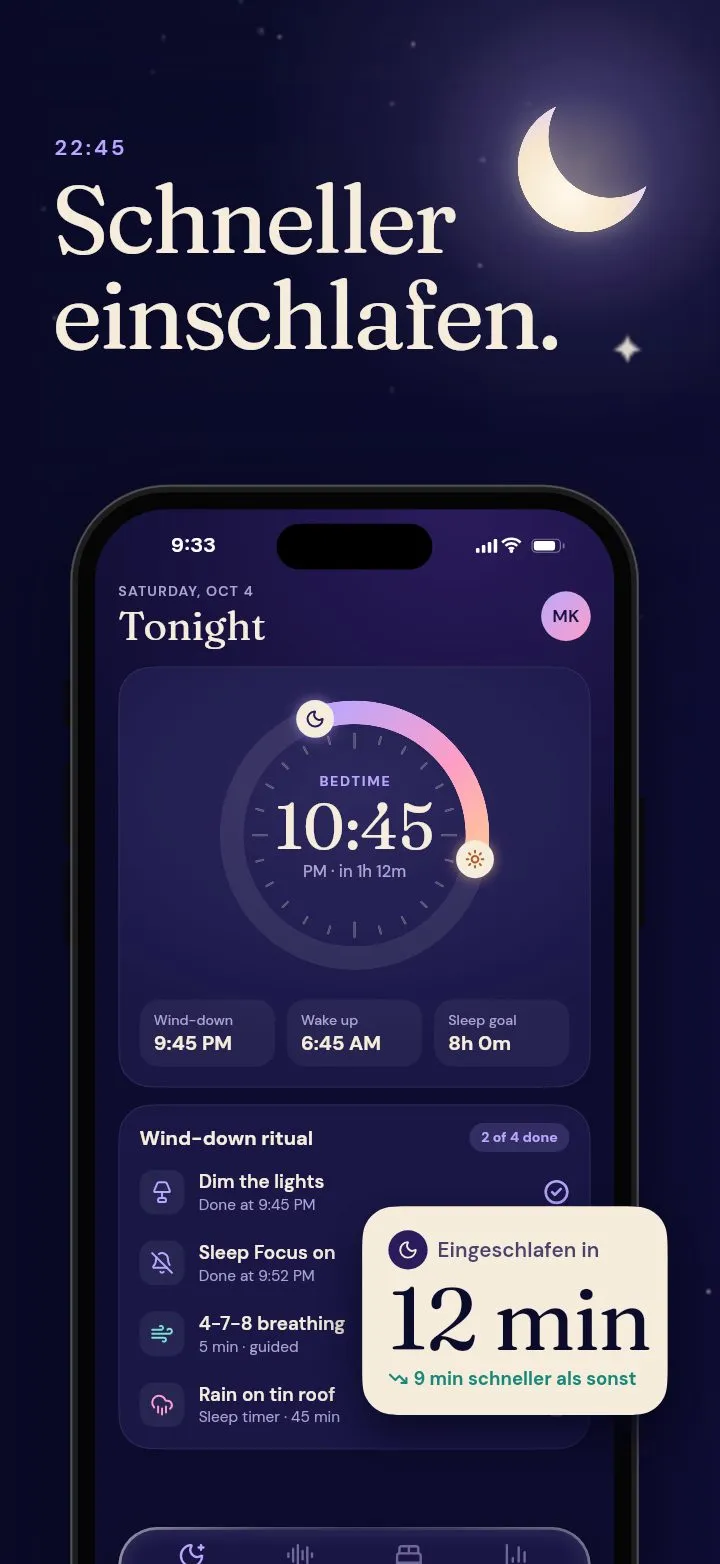
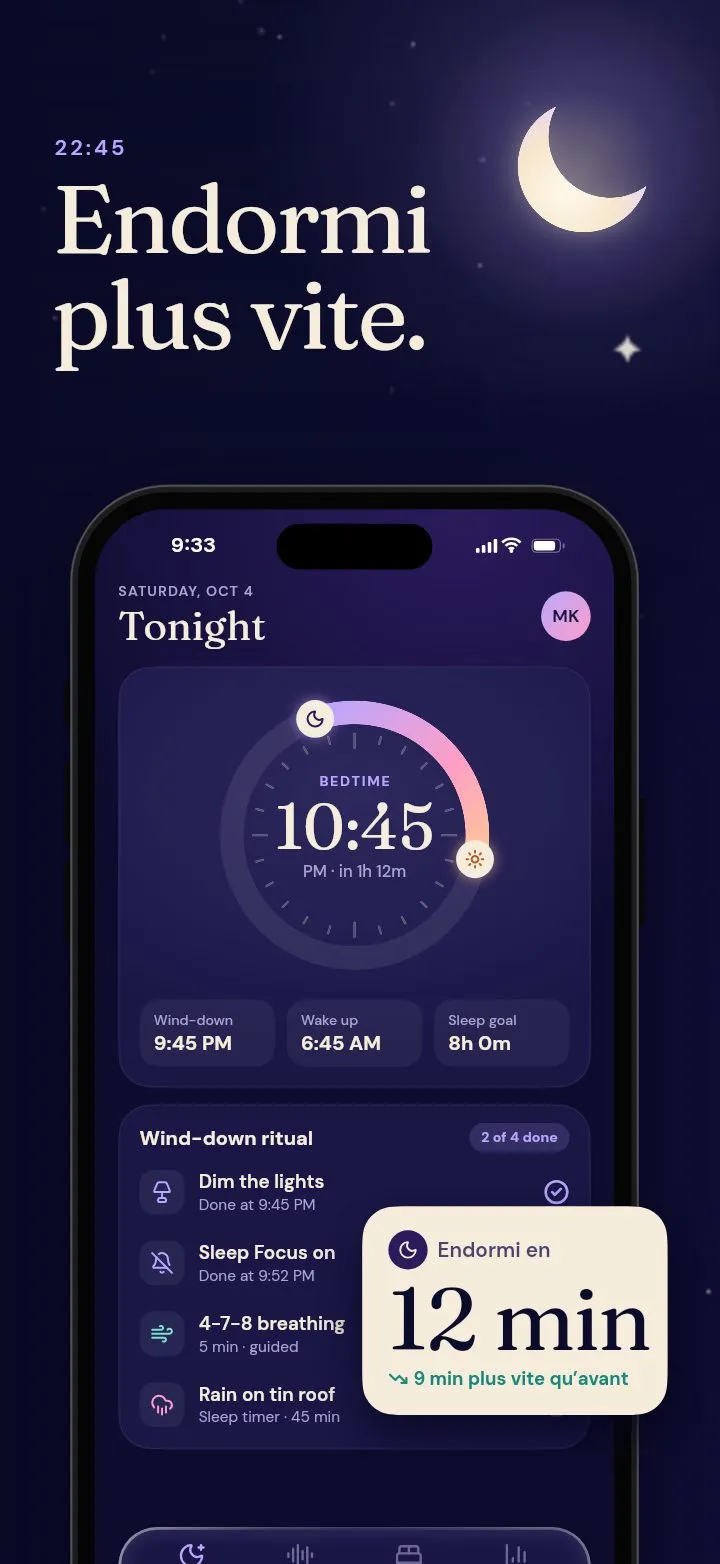
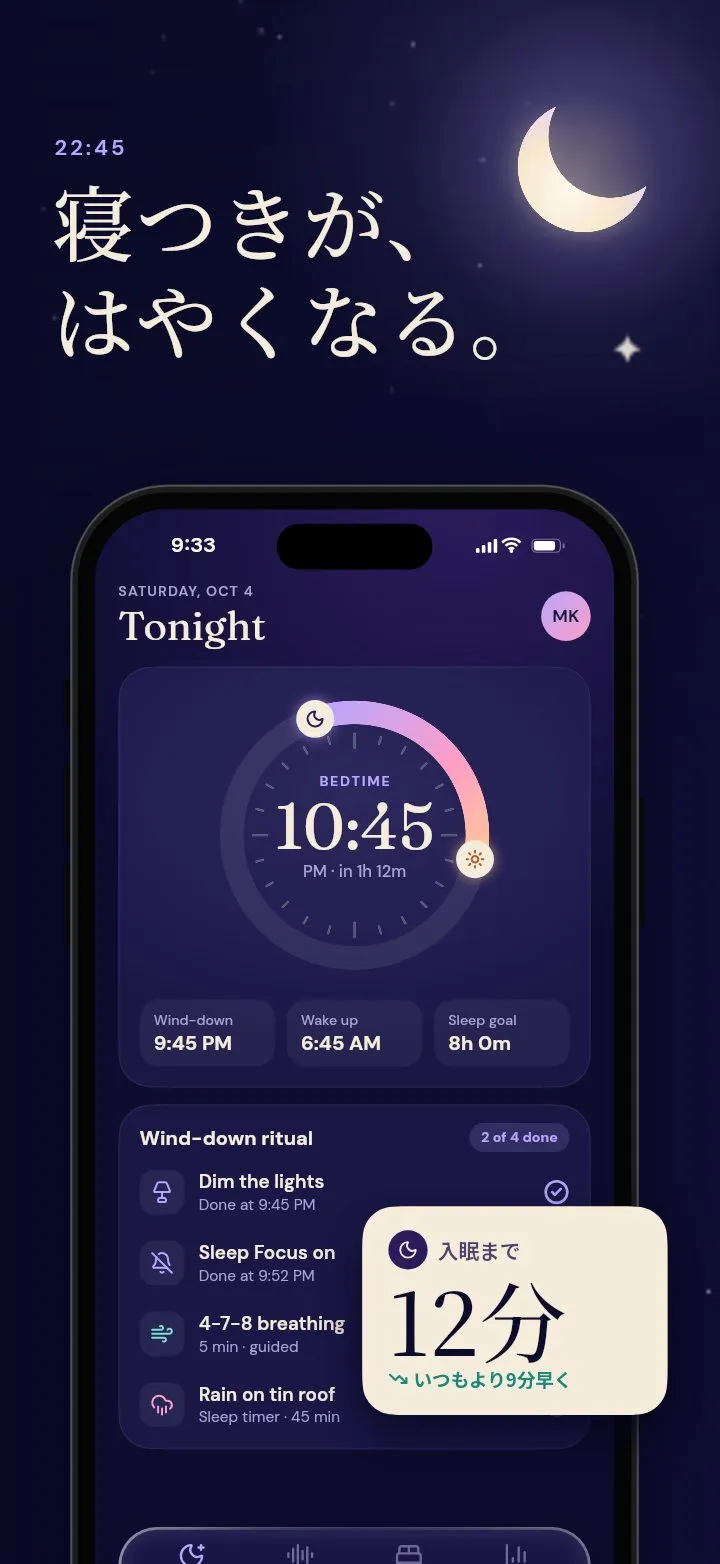
Sets for iPhone, iPad, and Google Play phones and tablets. Real device frames, 3D tilt, Liquid Glass, and panoramas that run across slides.
Screenshots, app icon, splash screen and feature graphic for the App Store and Google Play. Ask Claude Code, Codex or Cursor for them, then fine-tune on a real canvas.
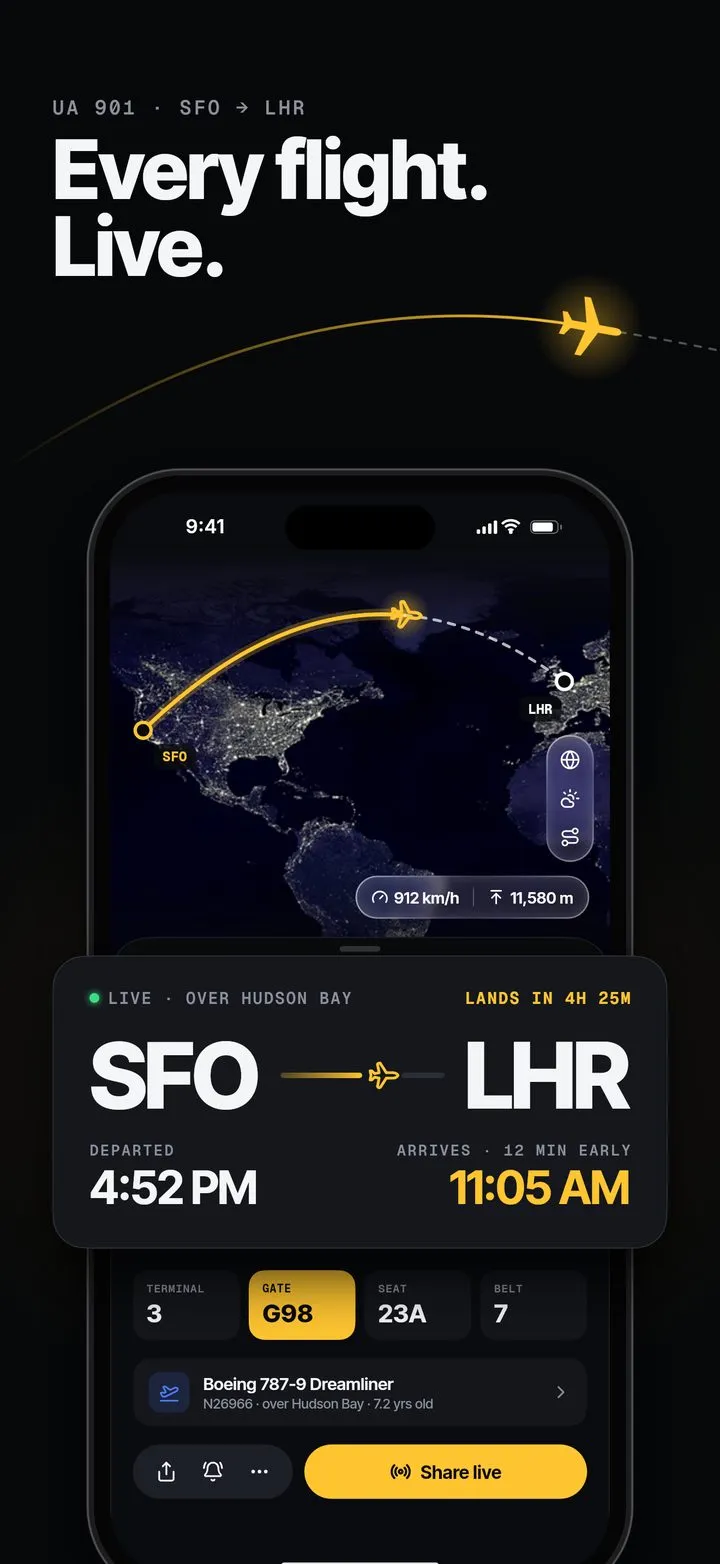
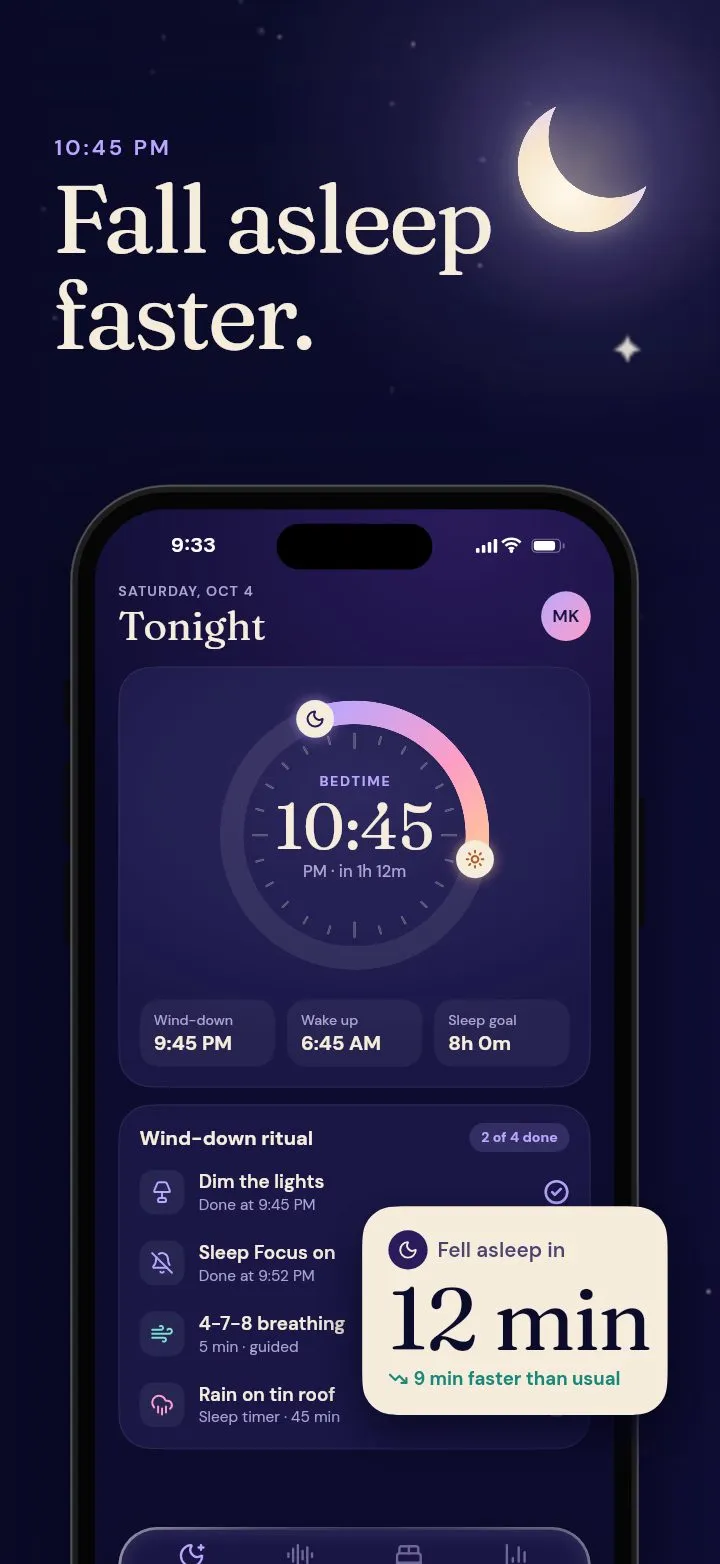
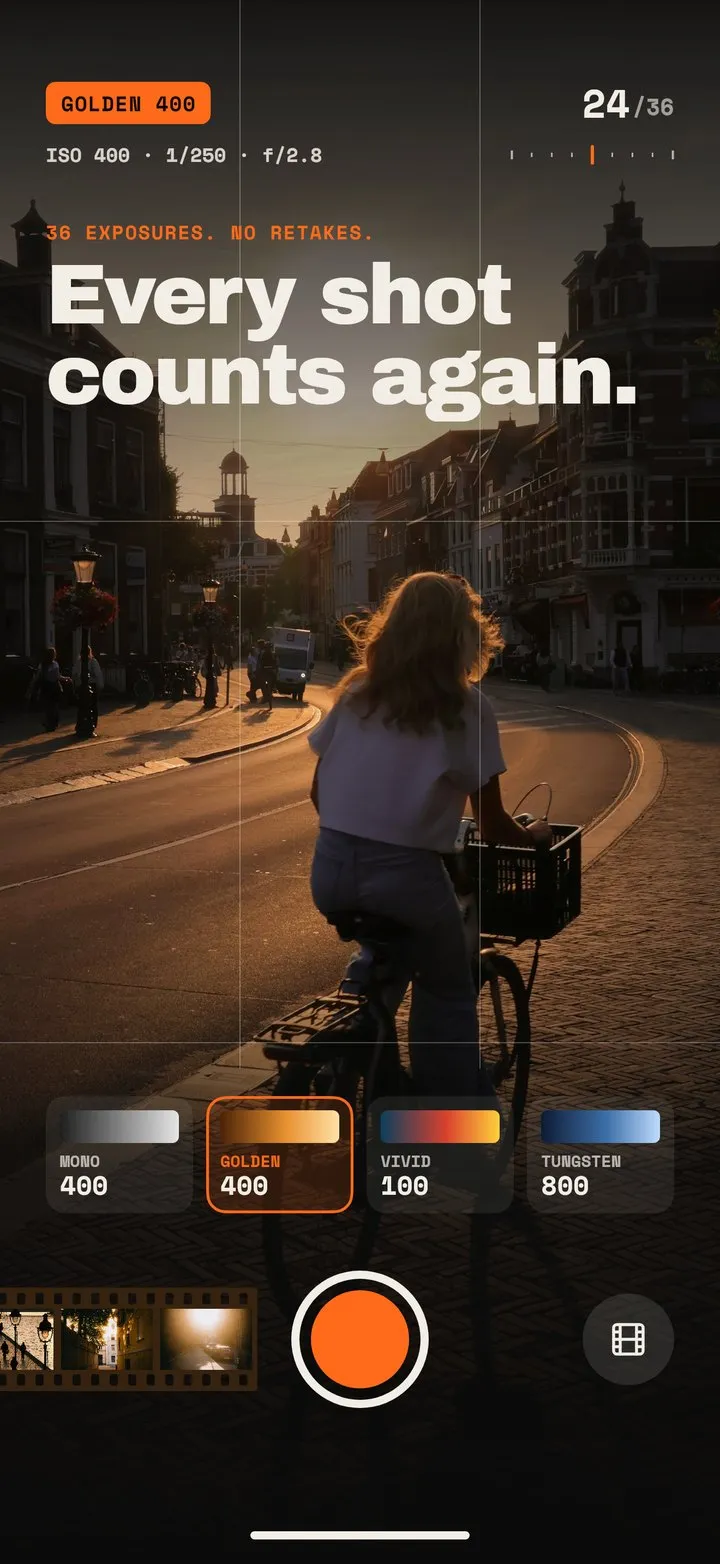
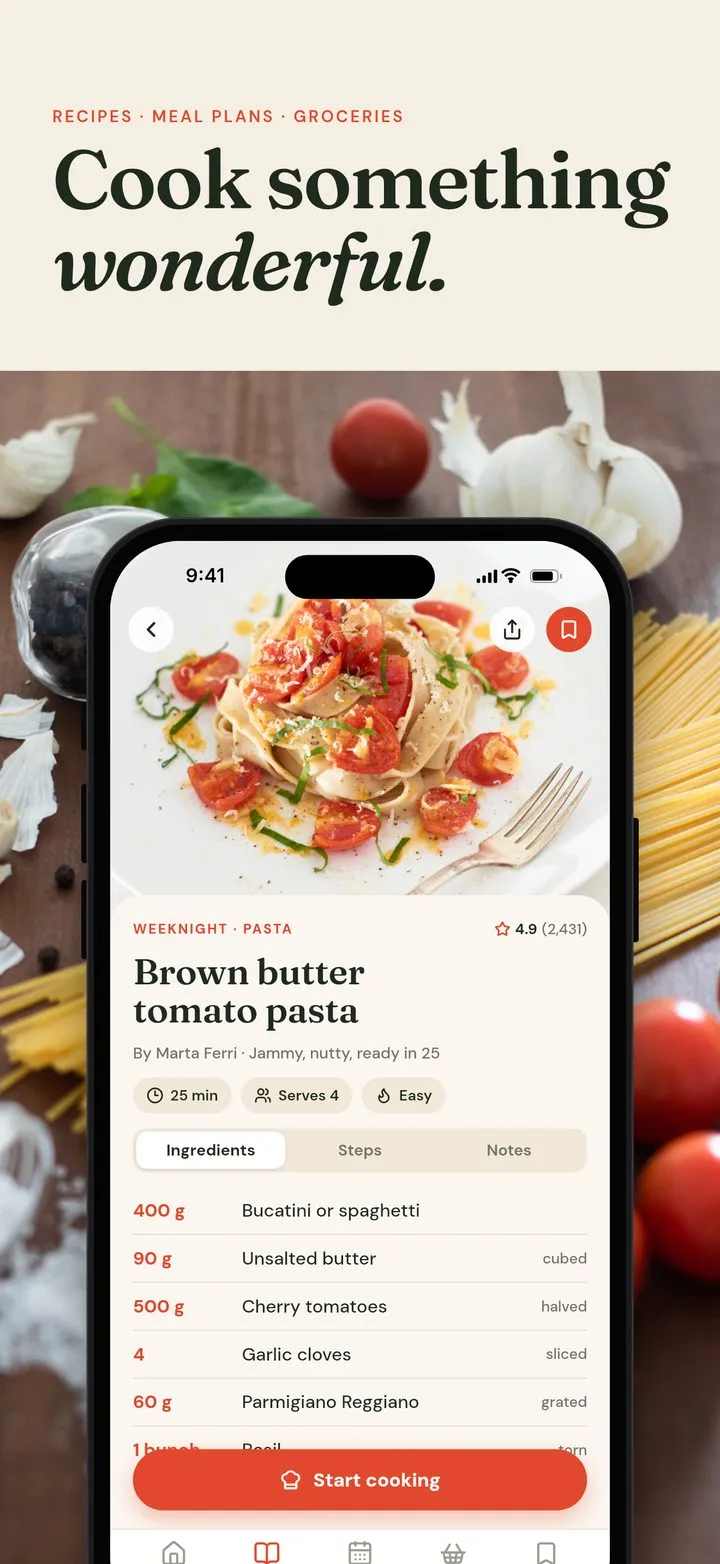
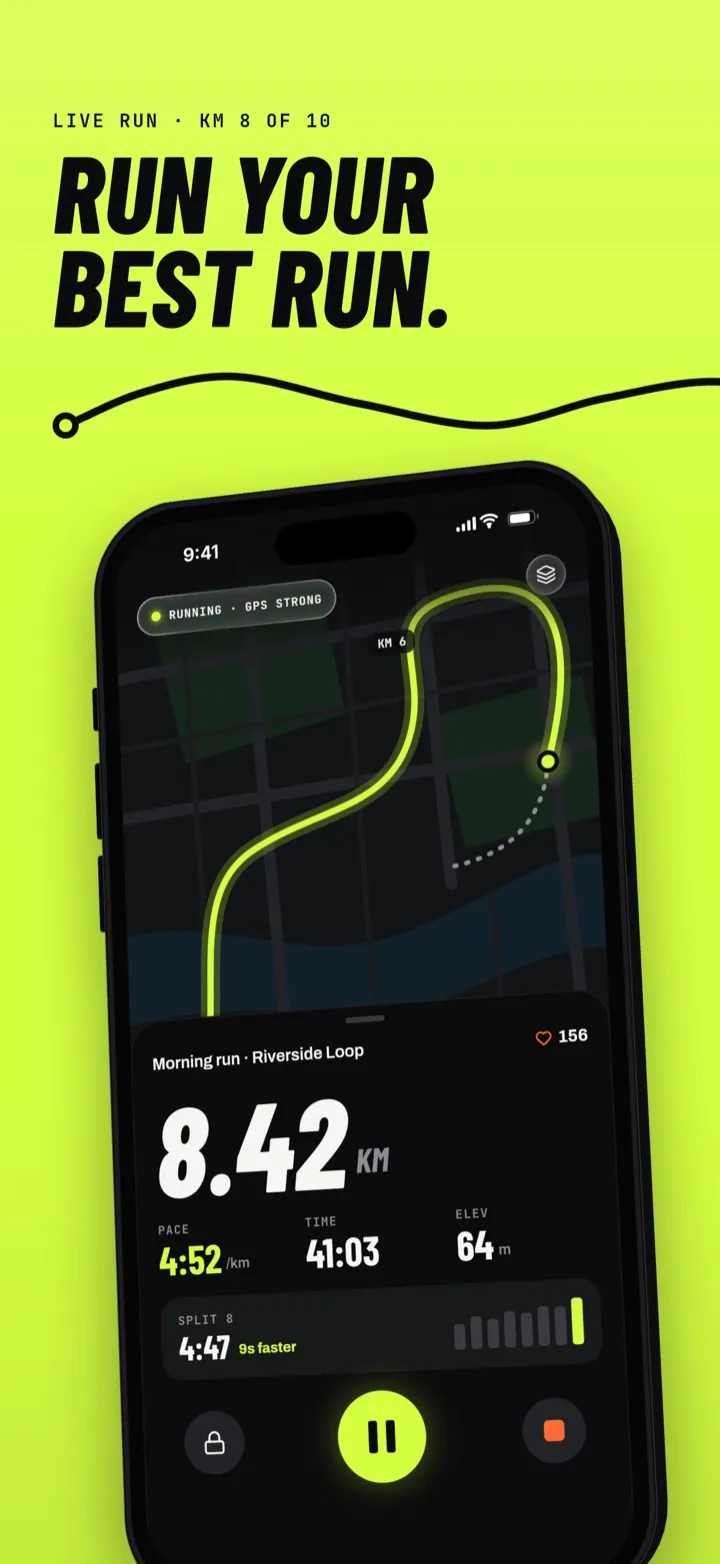
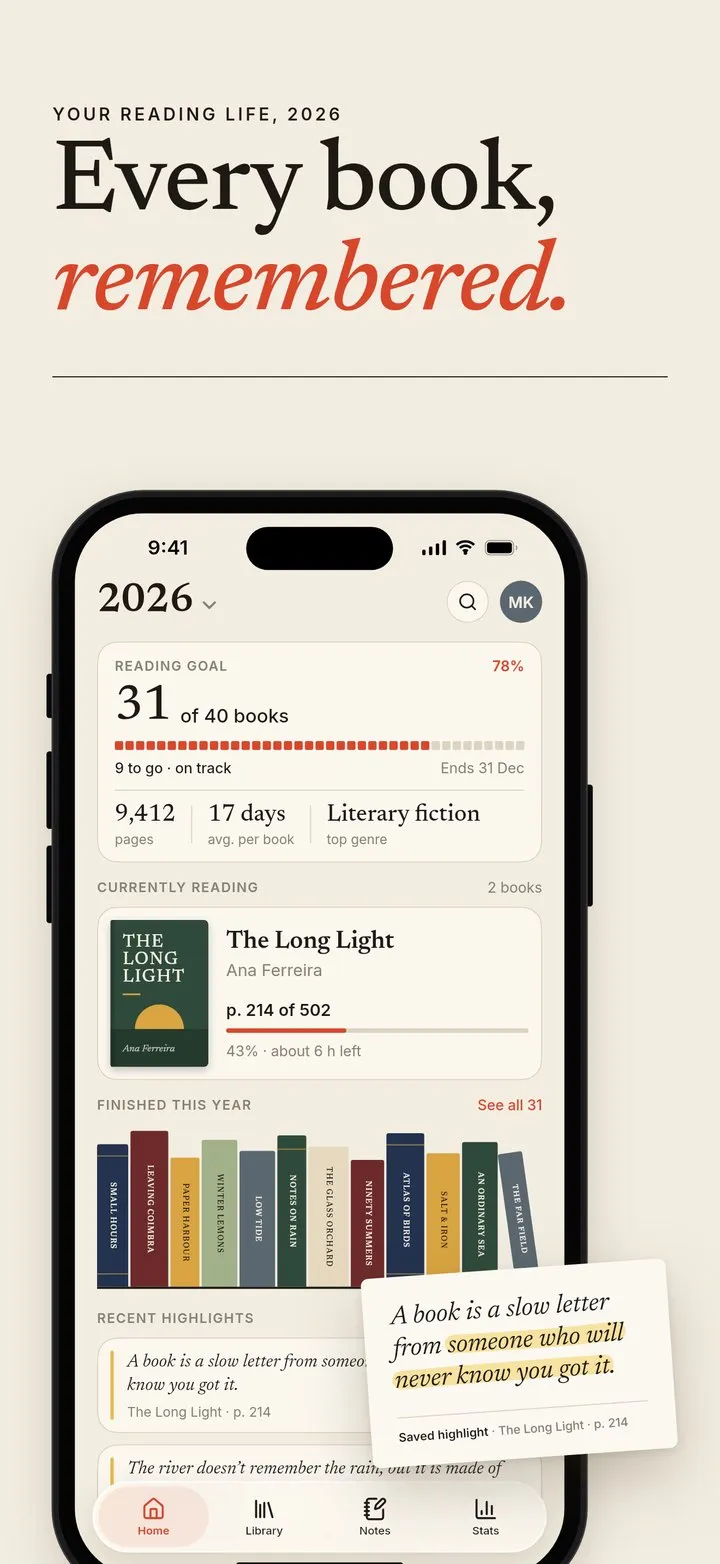
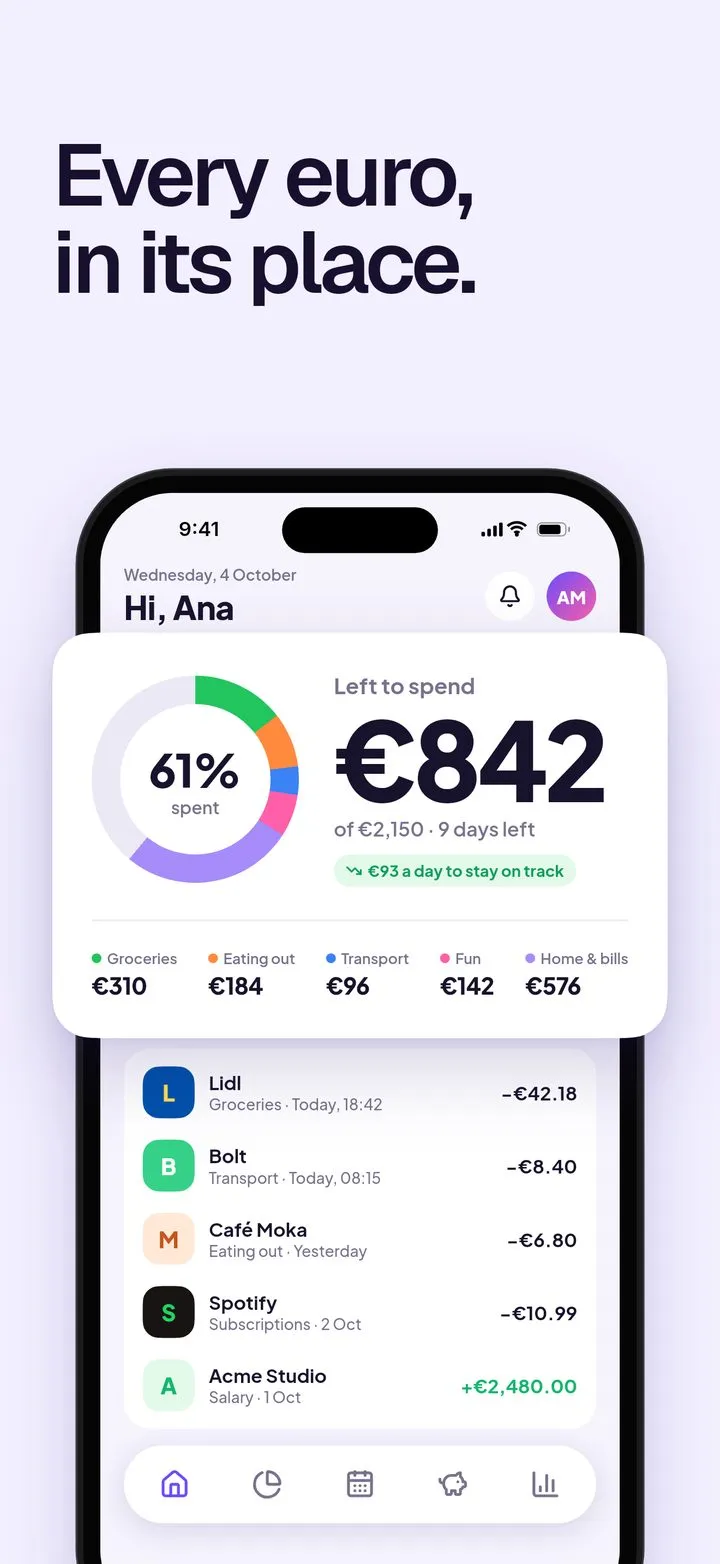
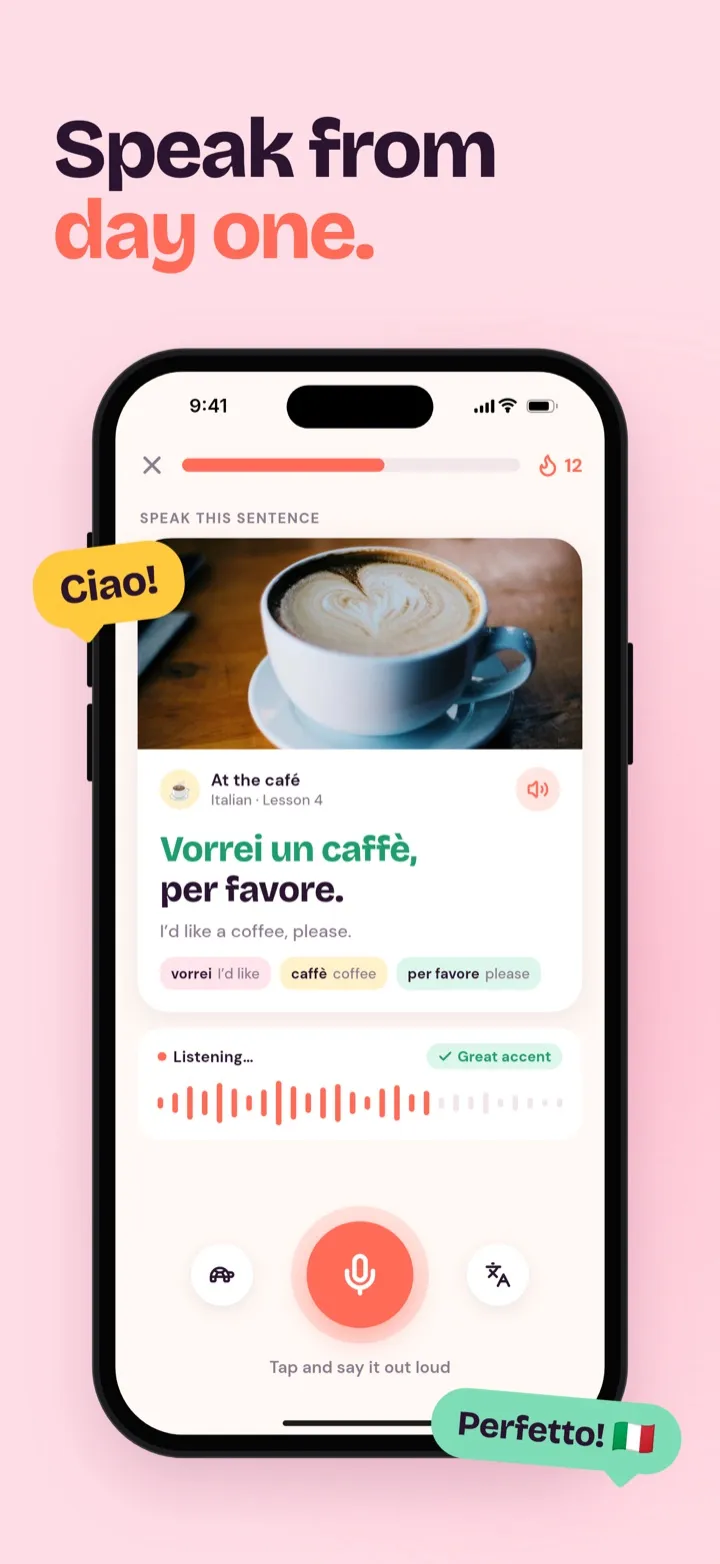
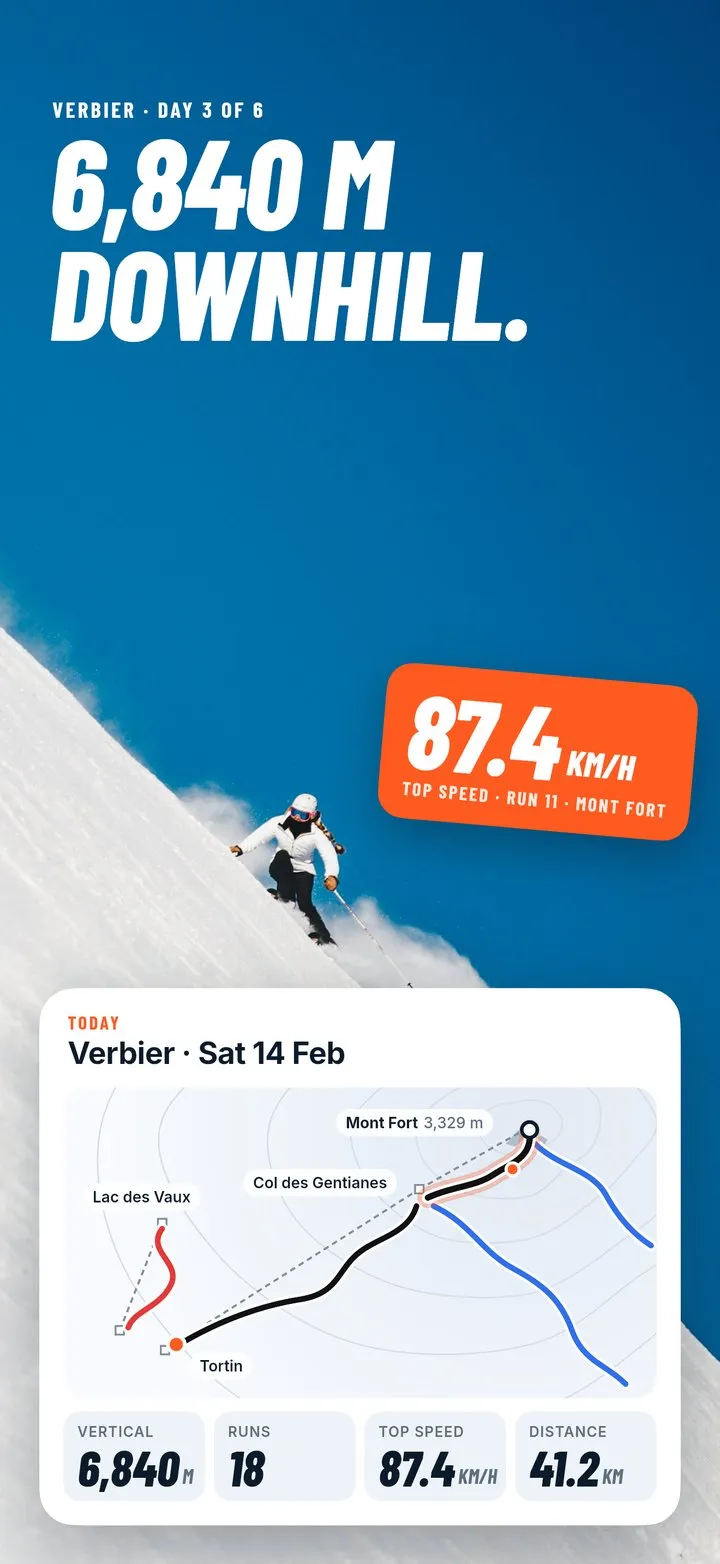
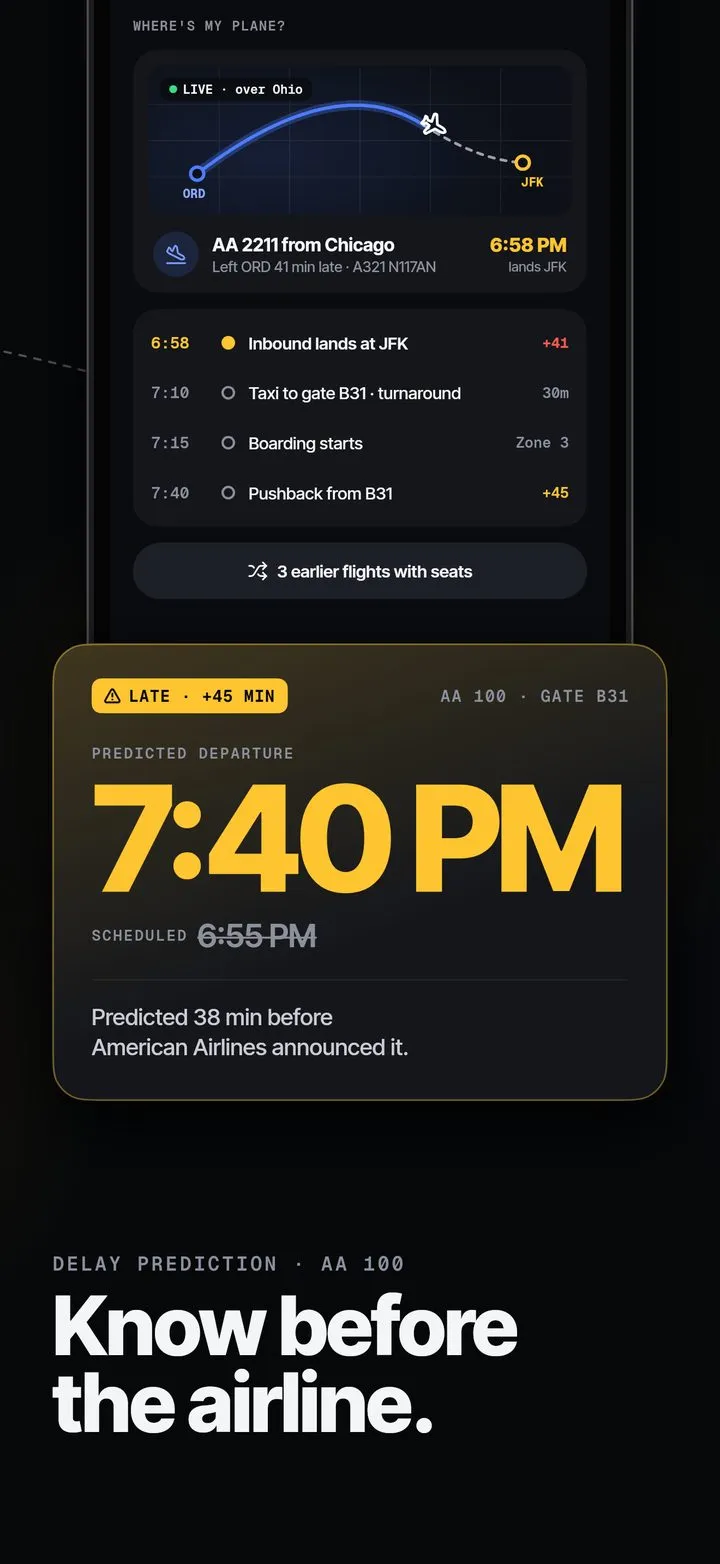
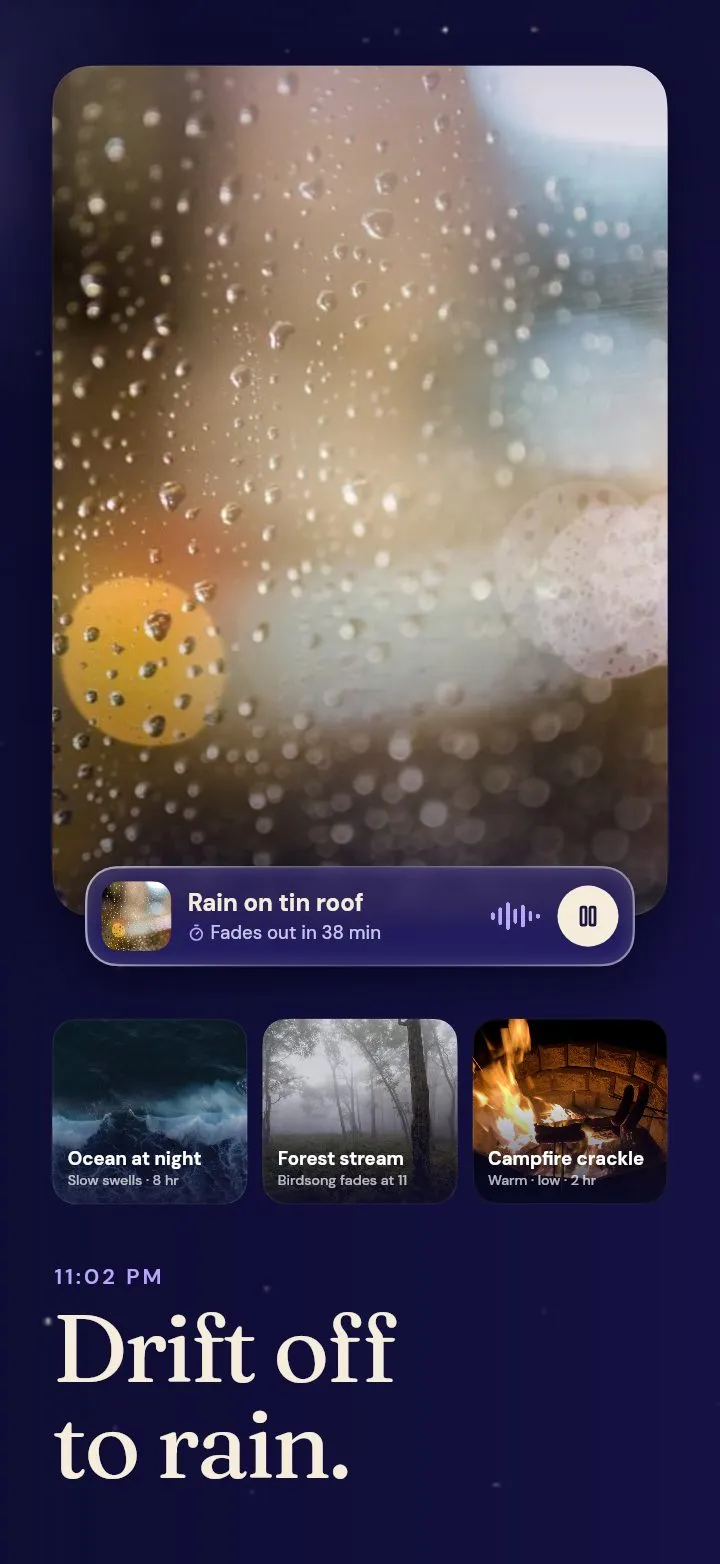
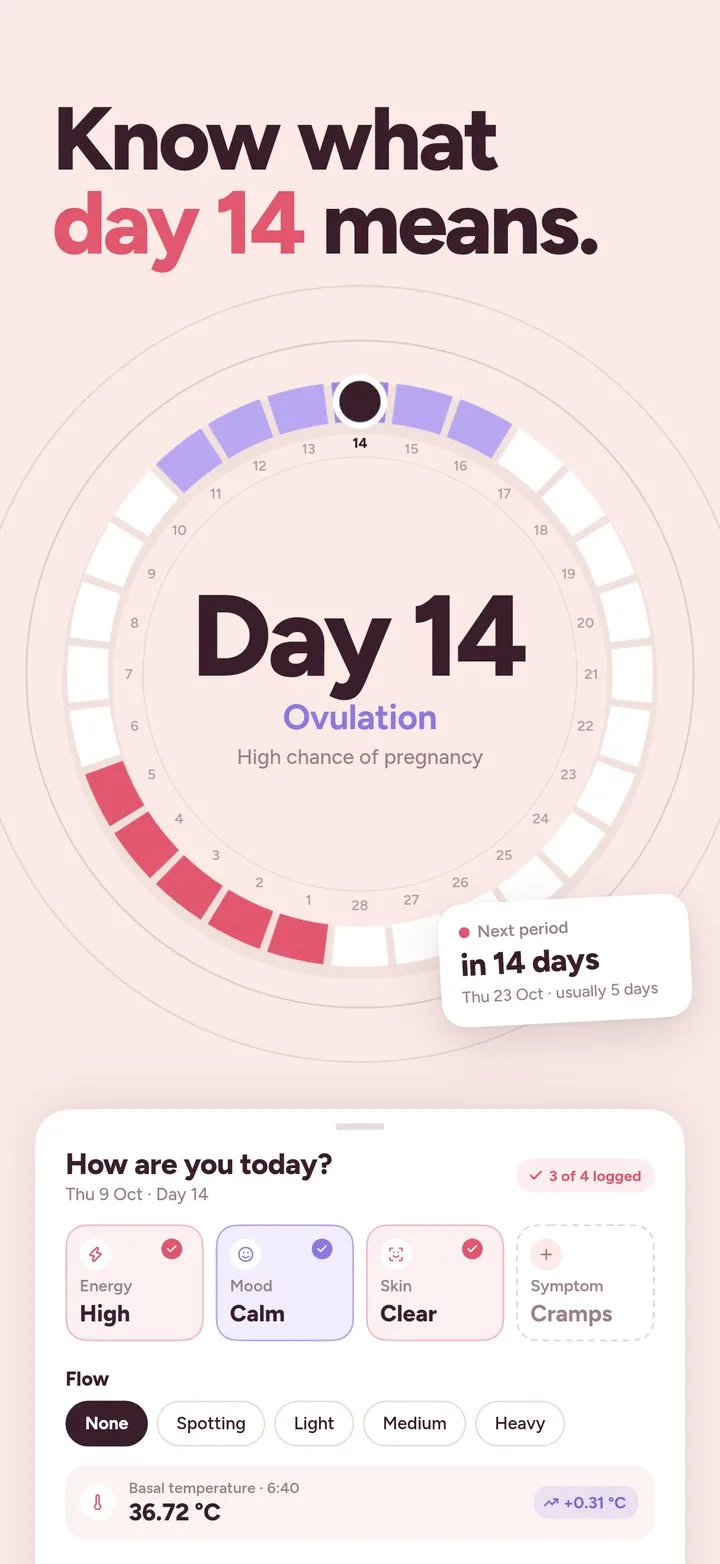
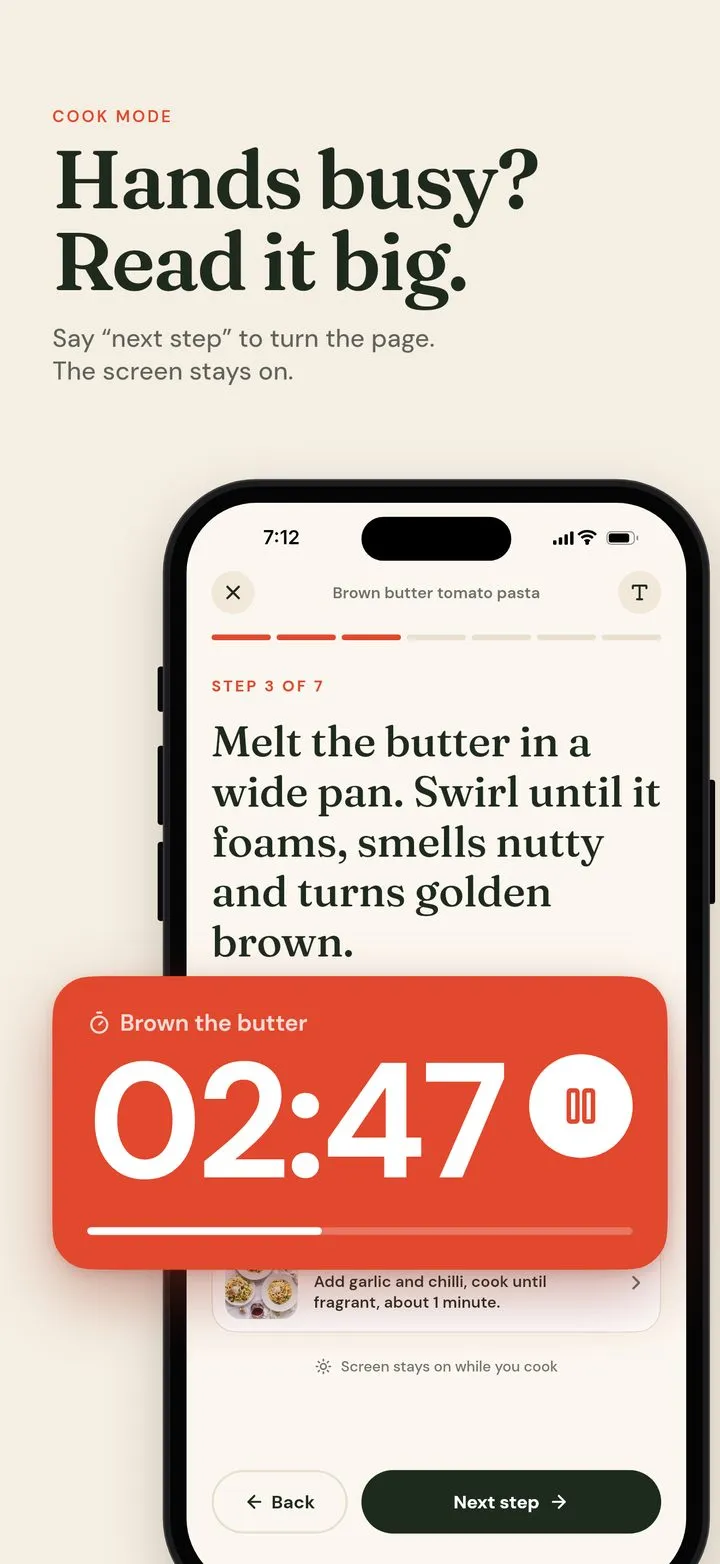
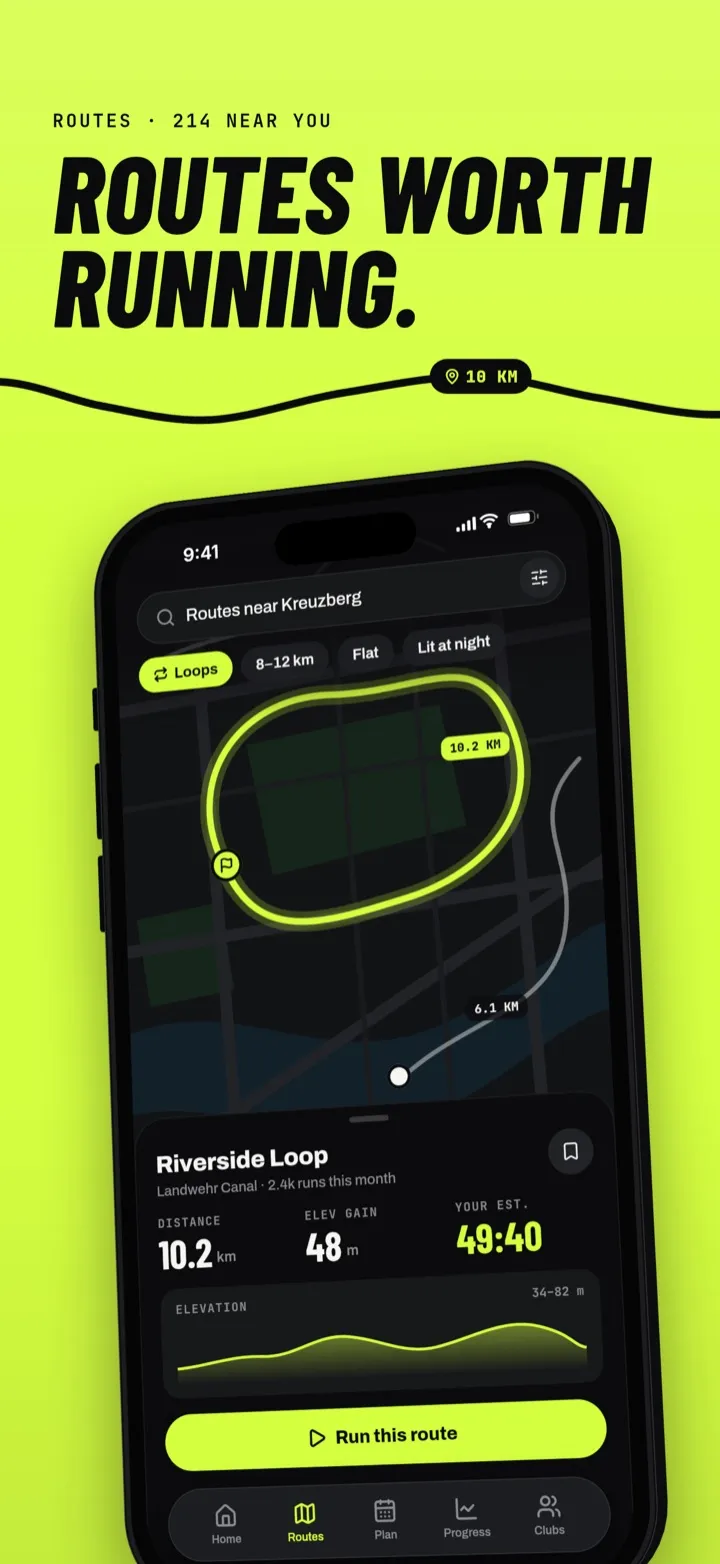
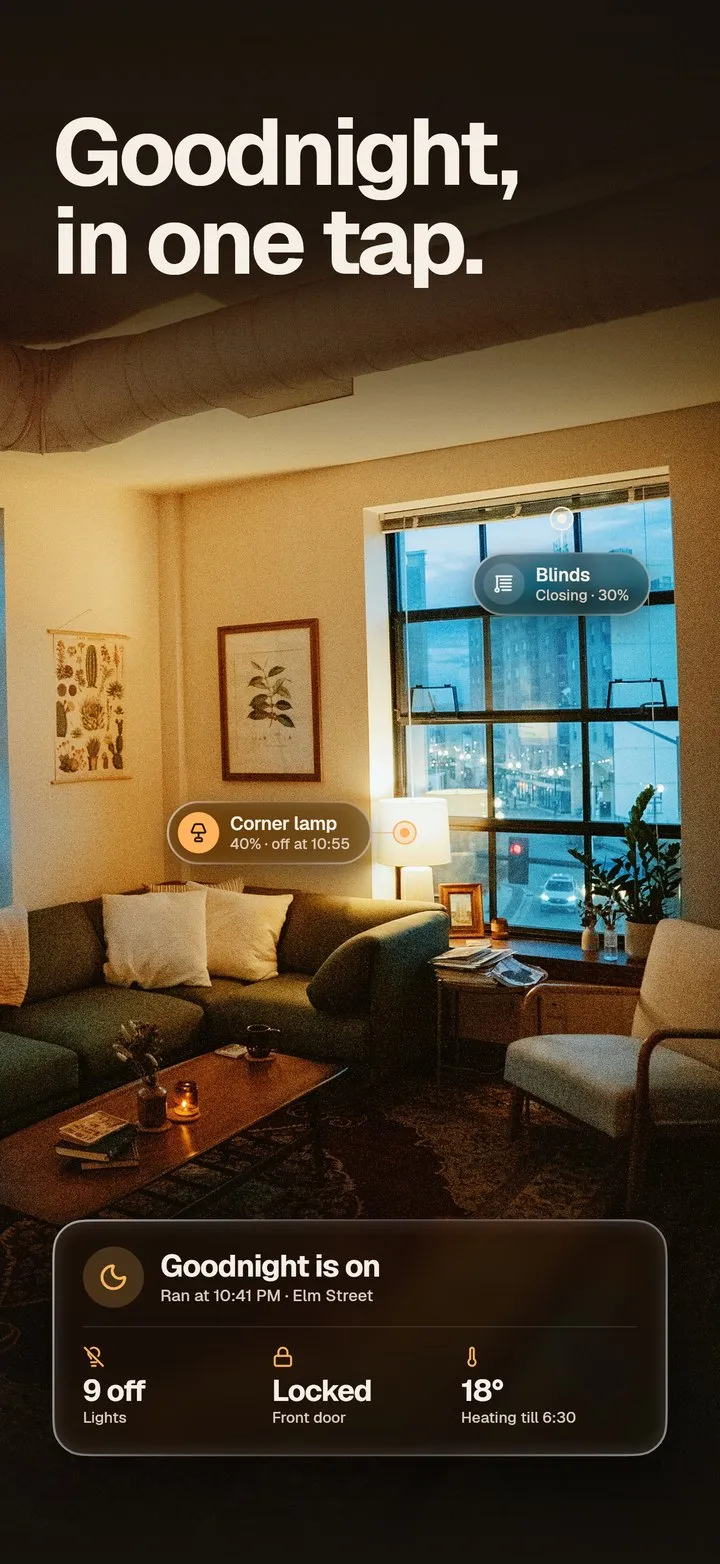
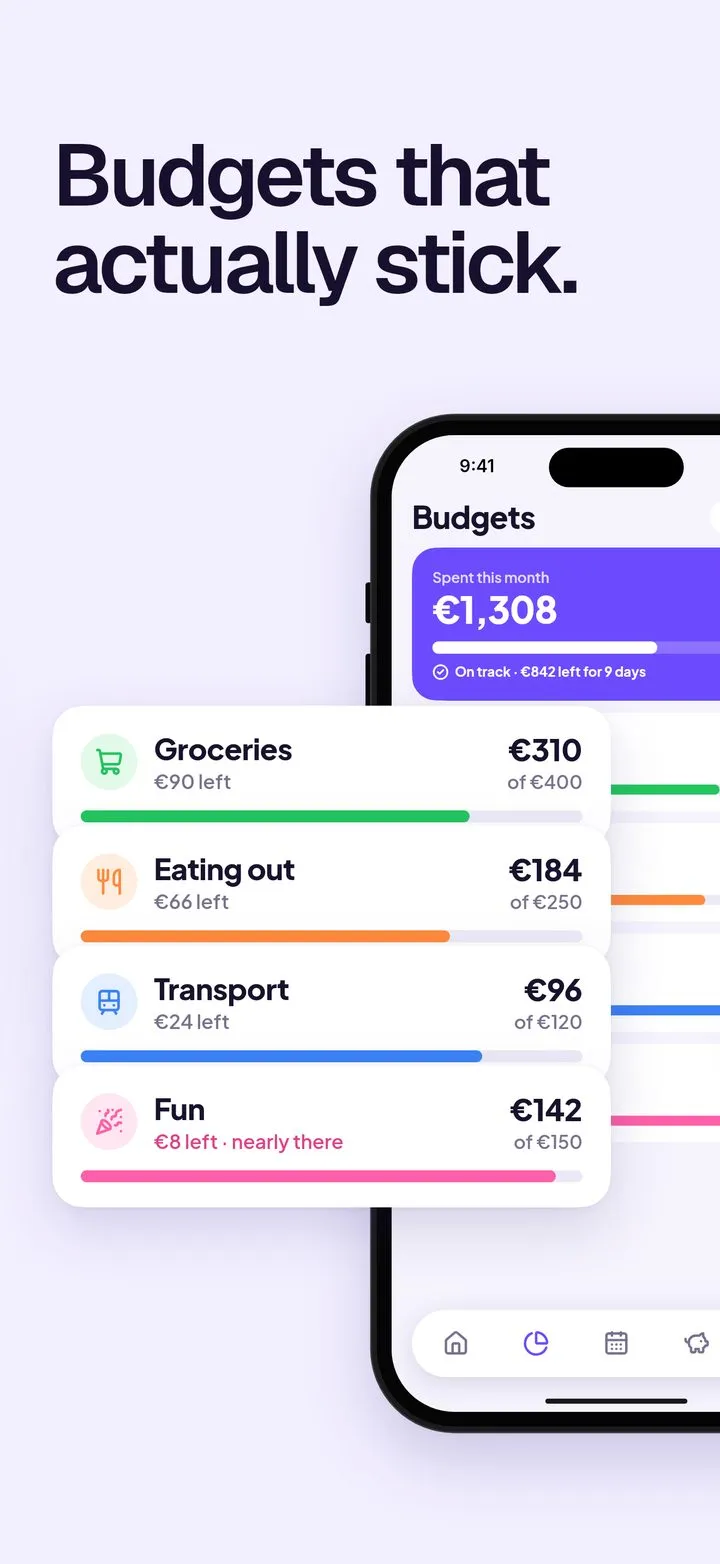
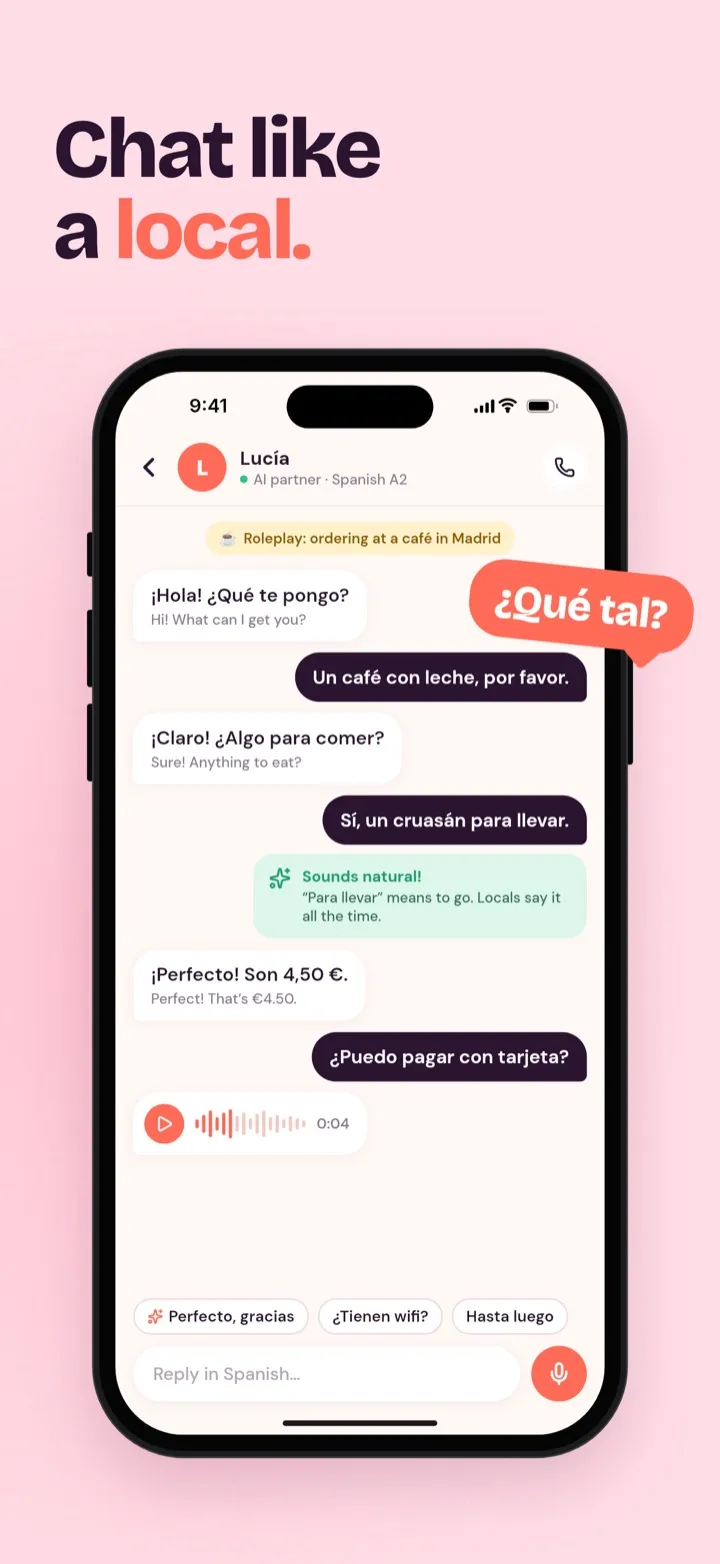
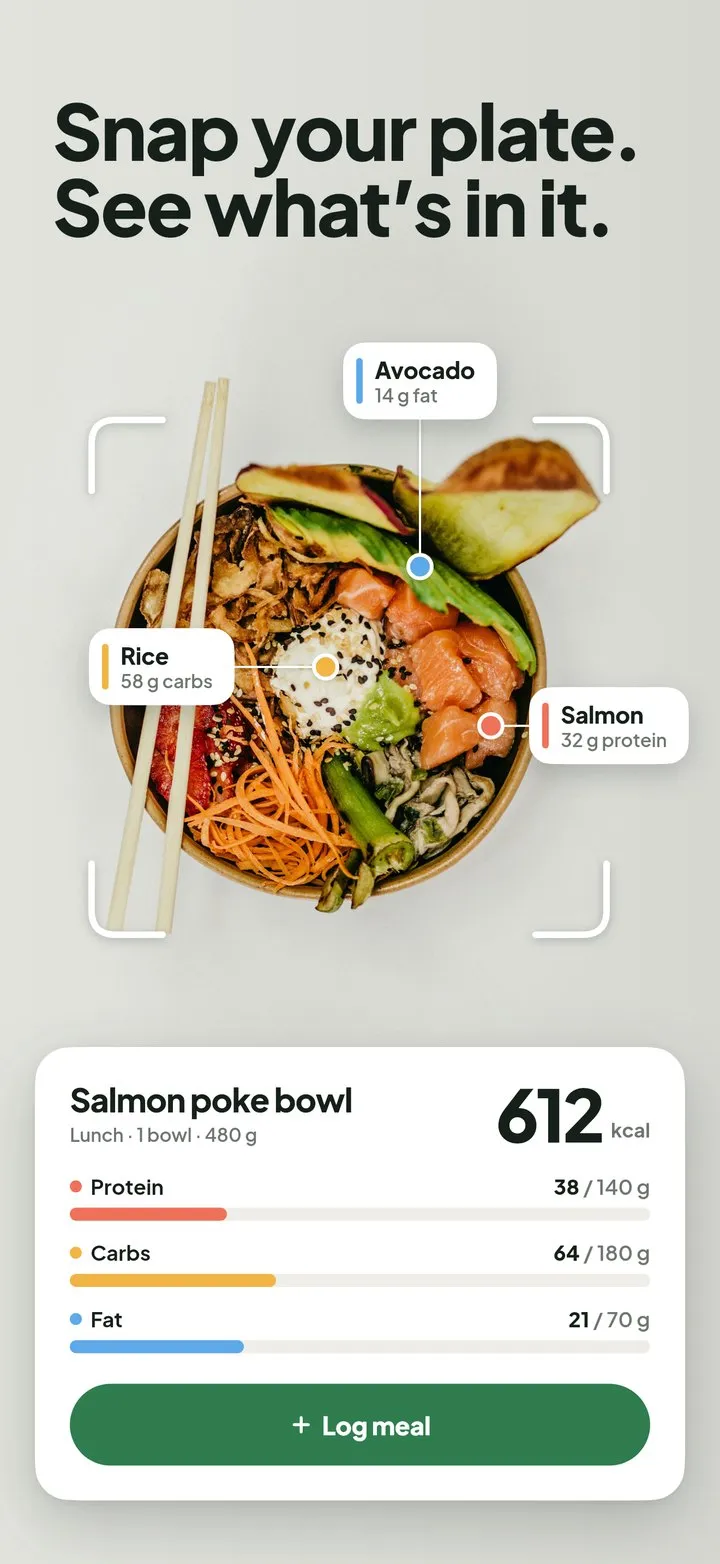
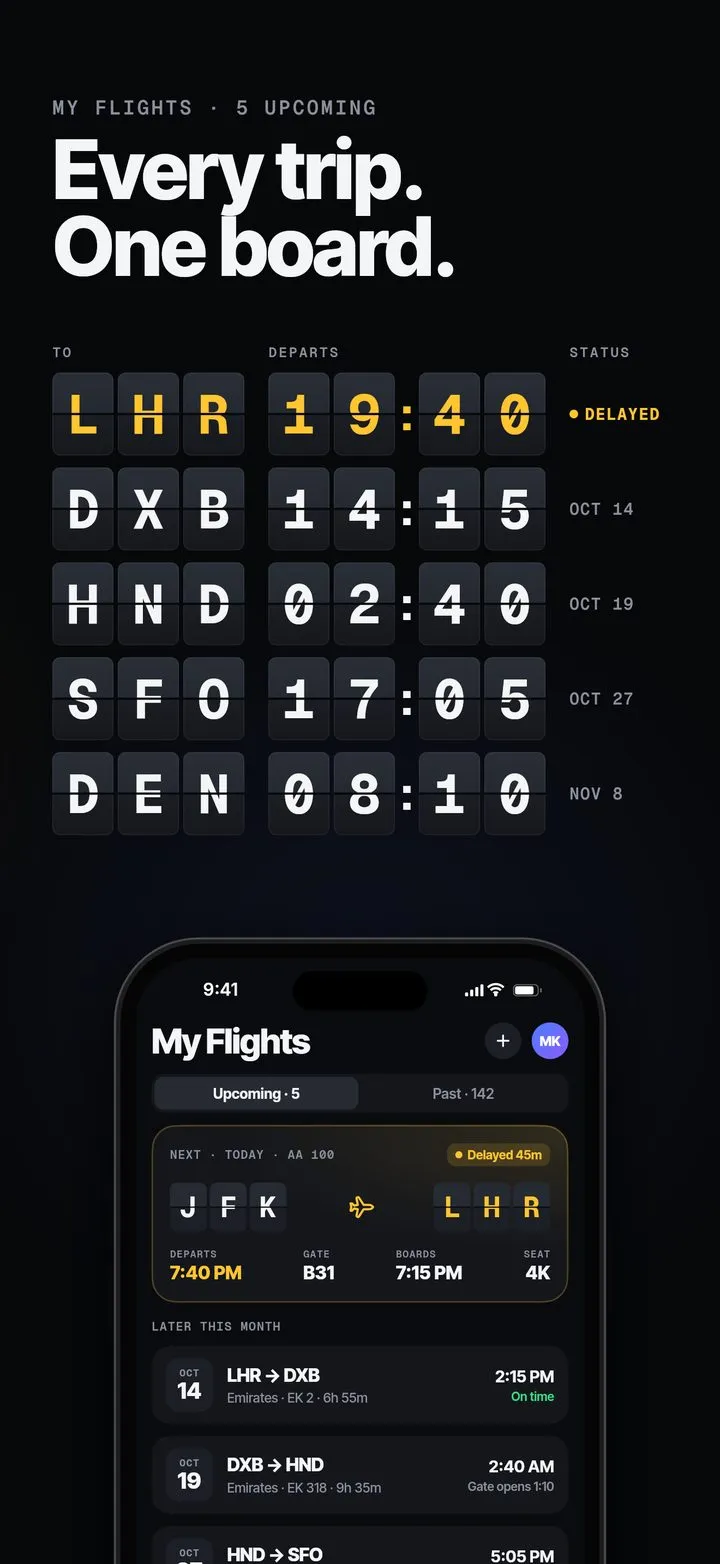
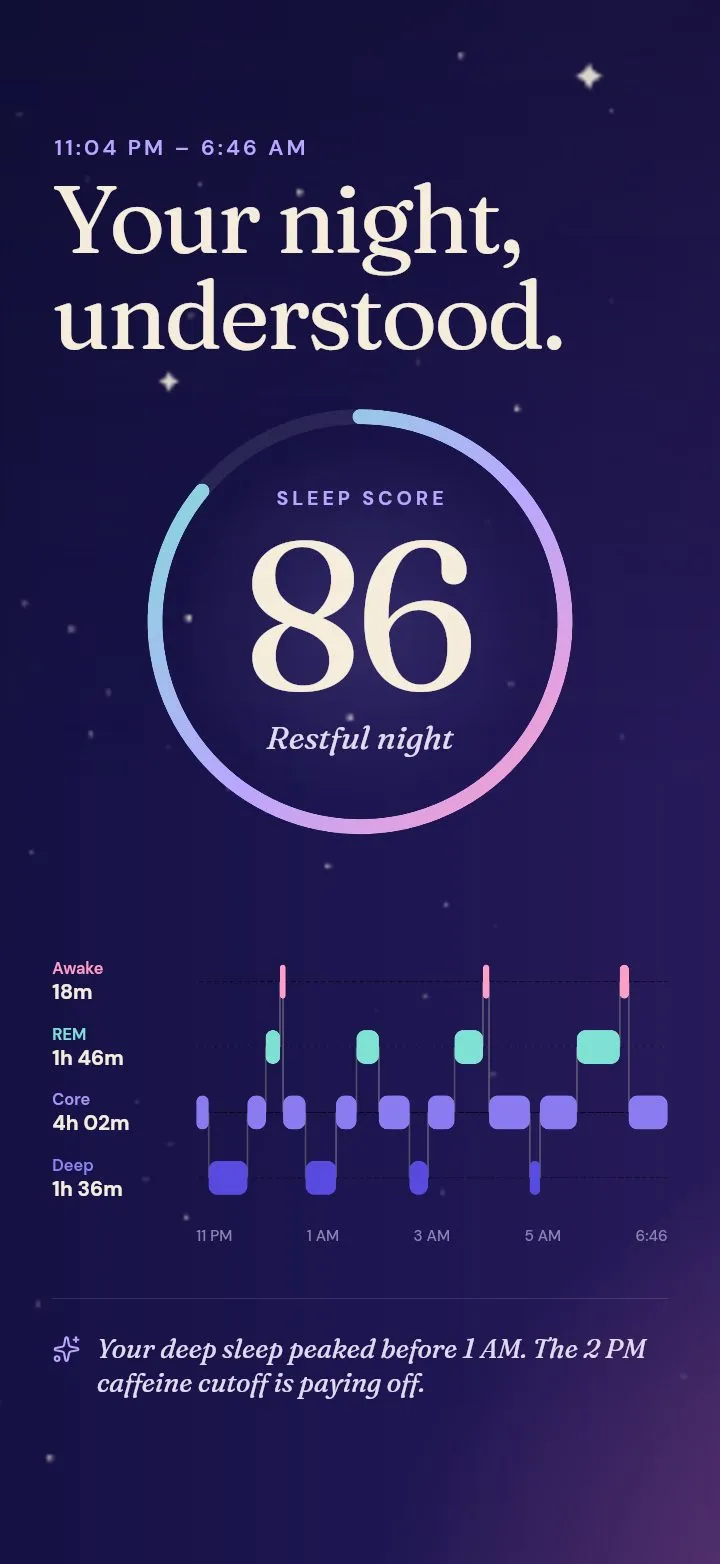
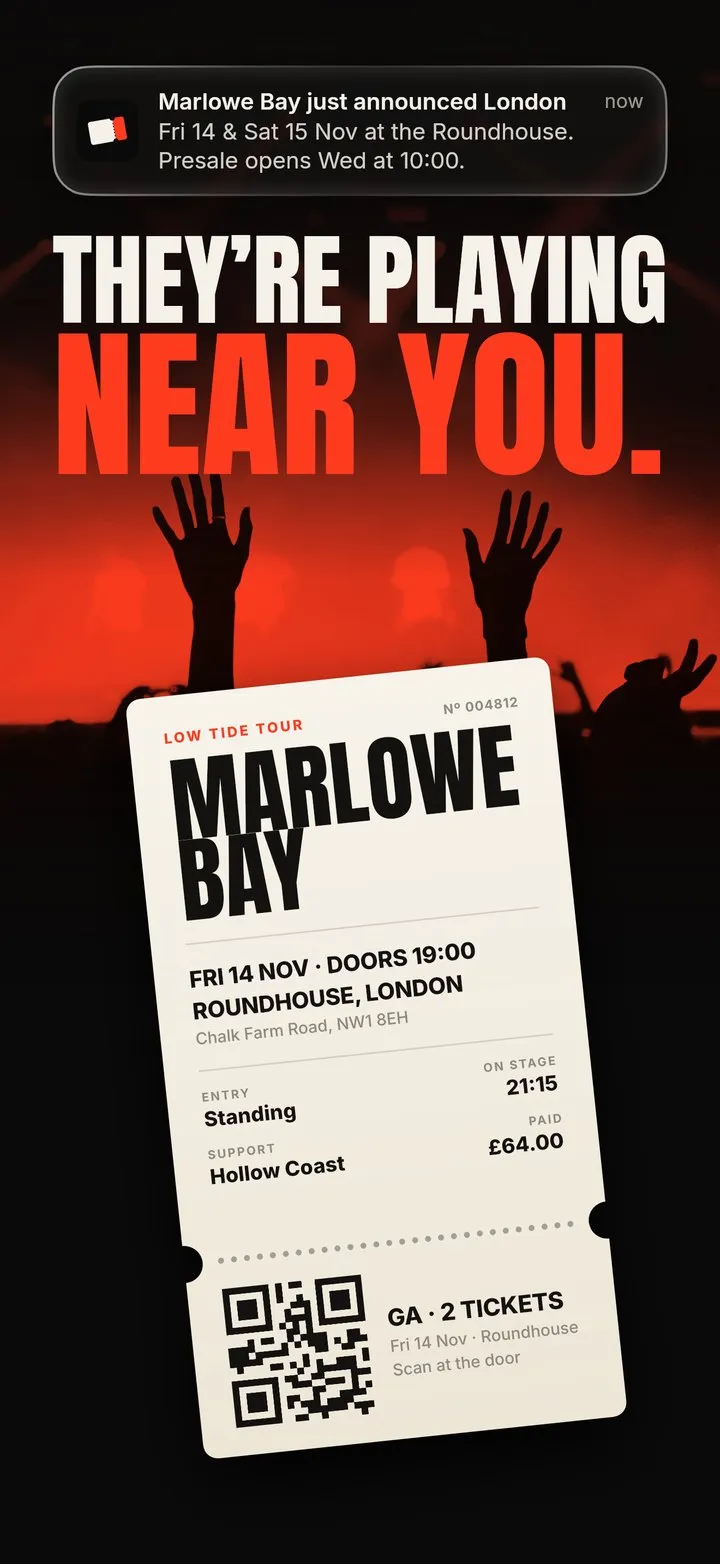
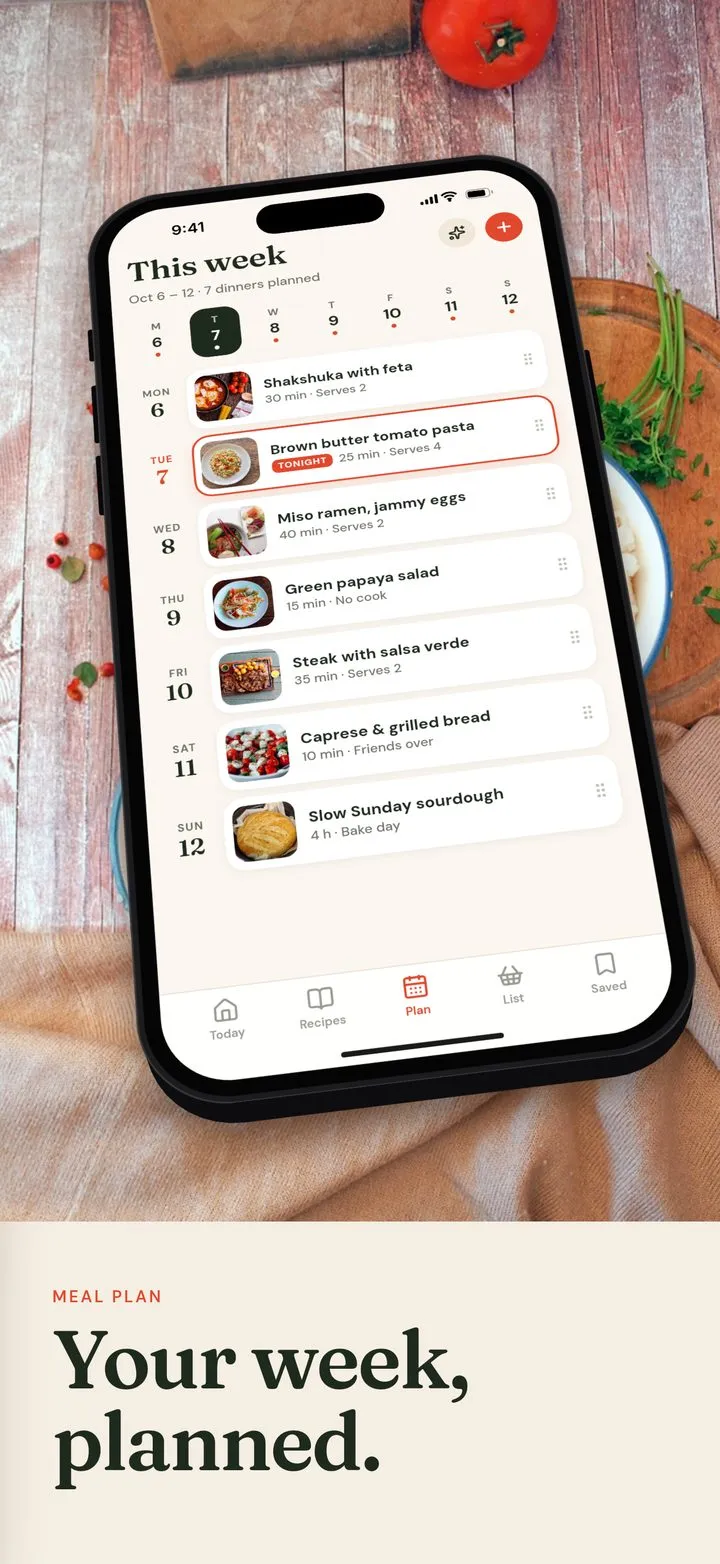
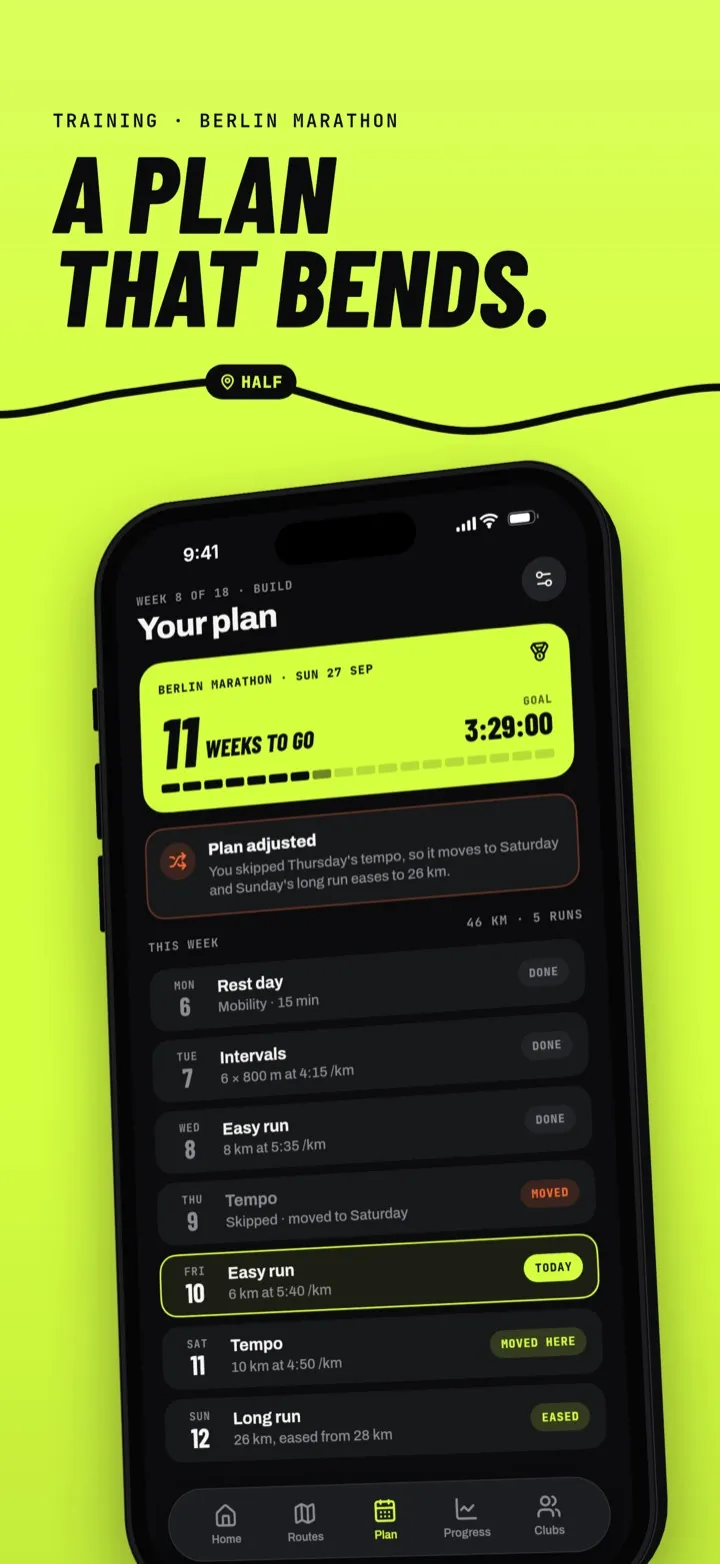
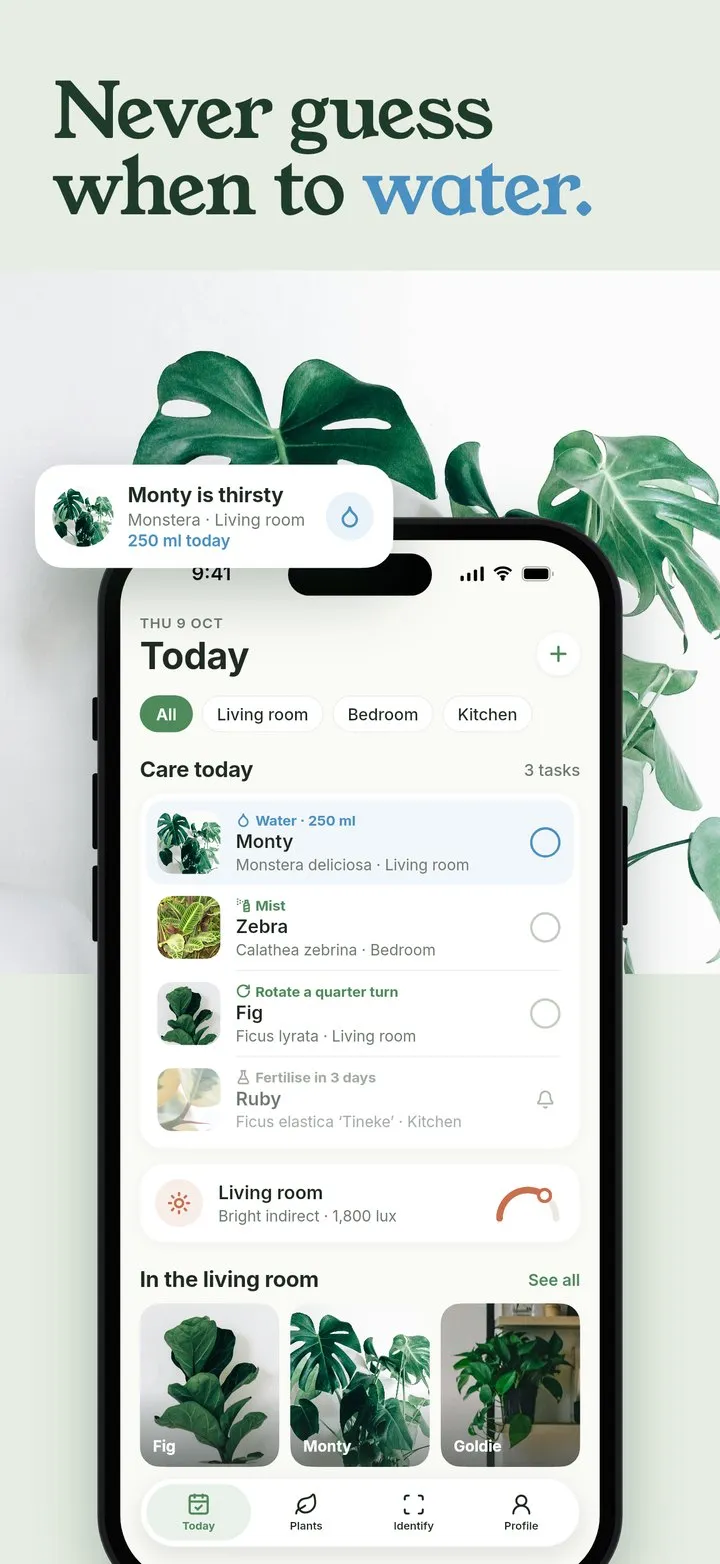
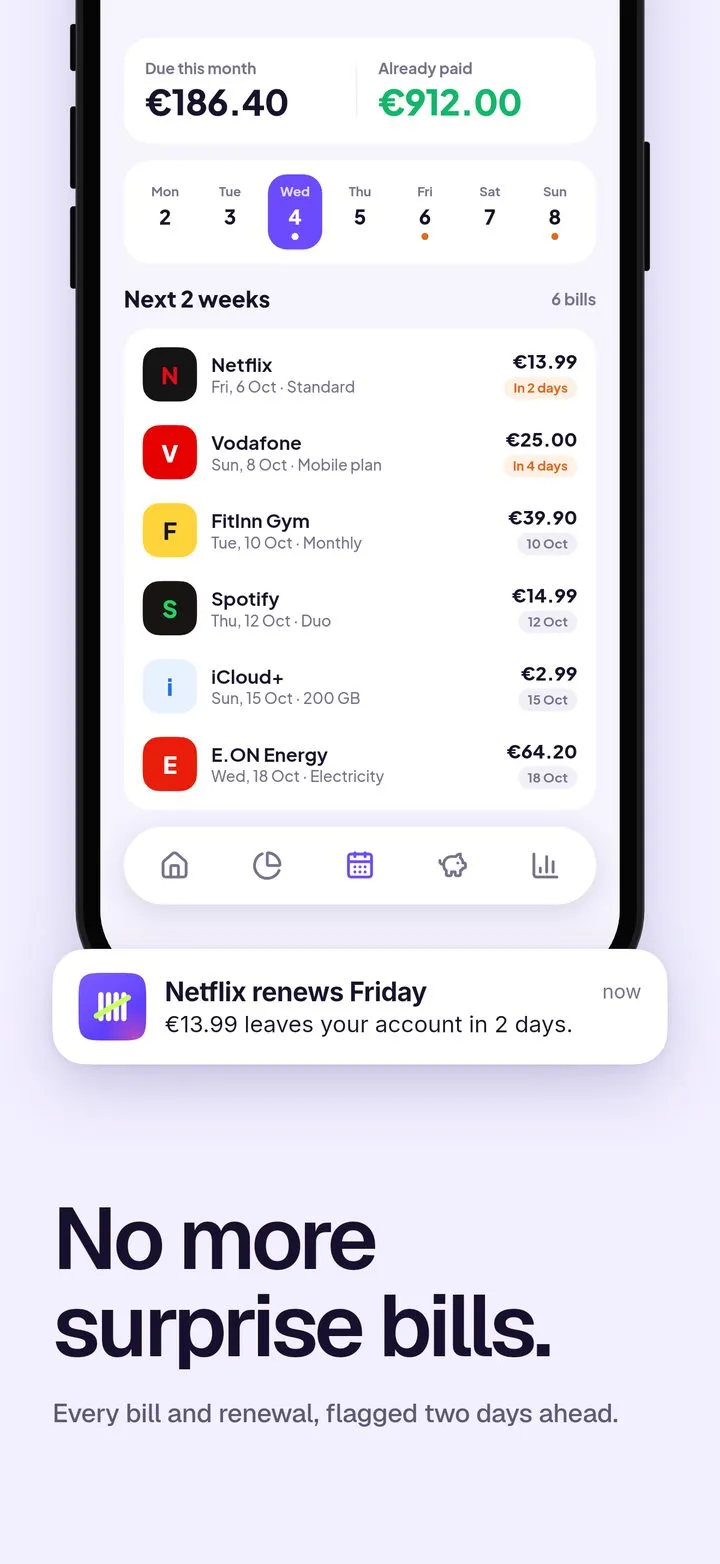
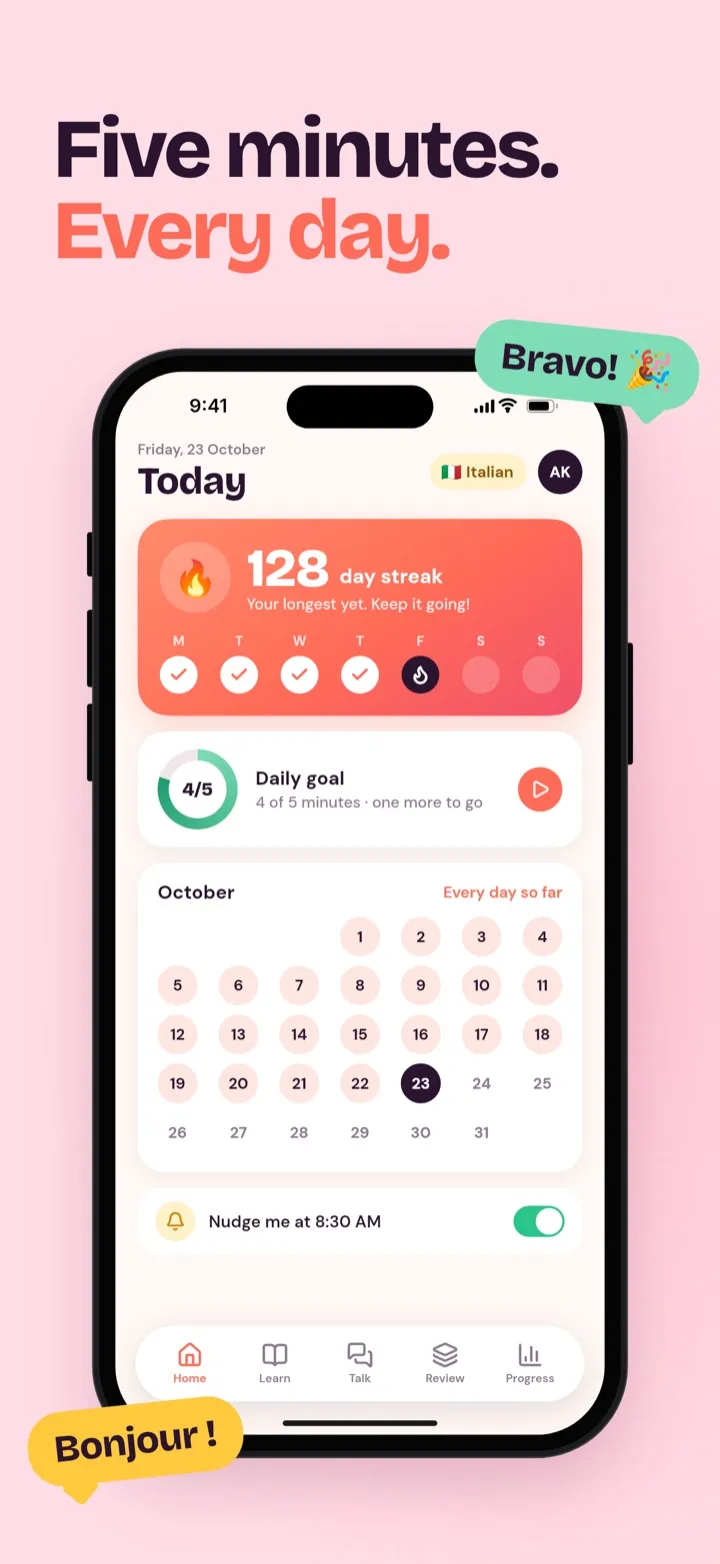
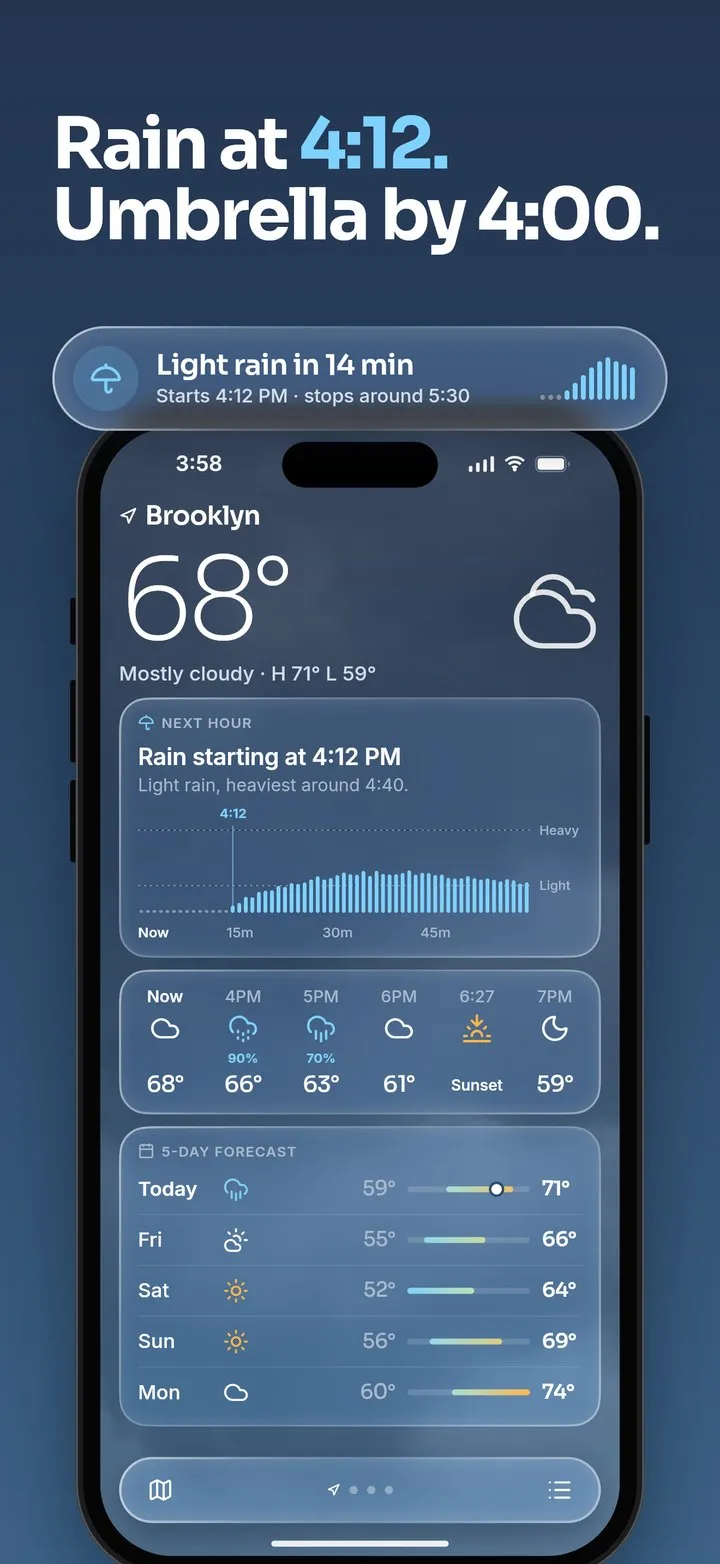
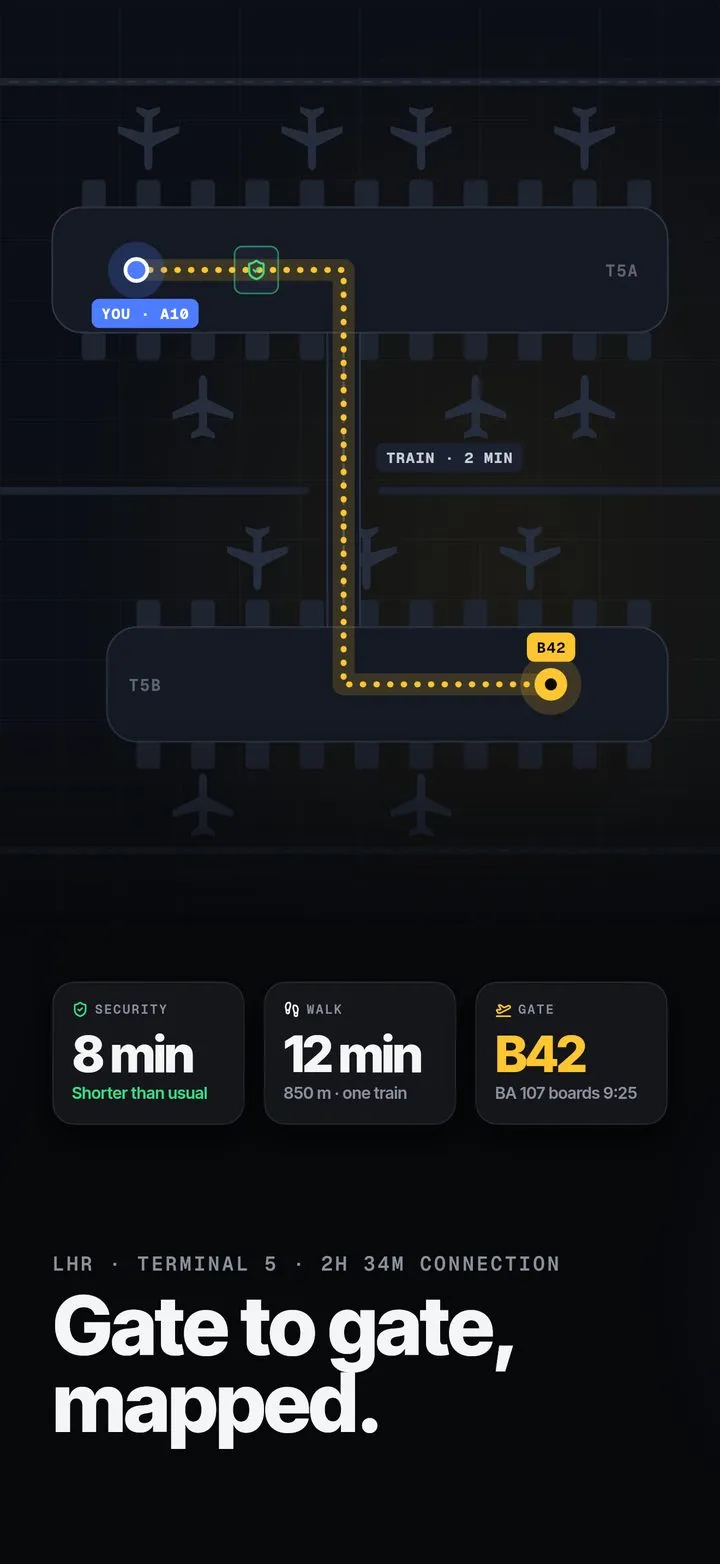
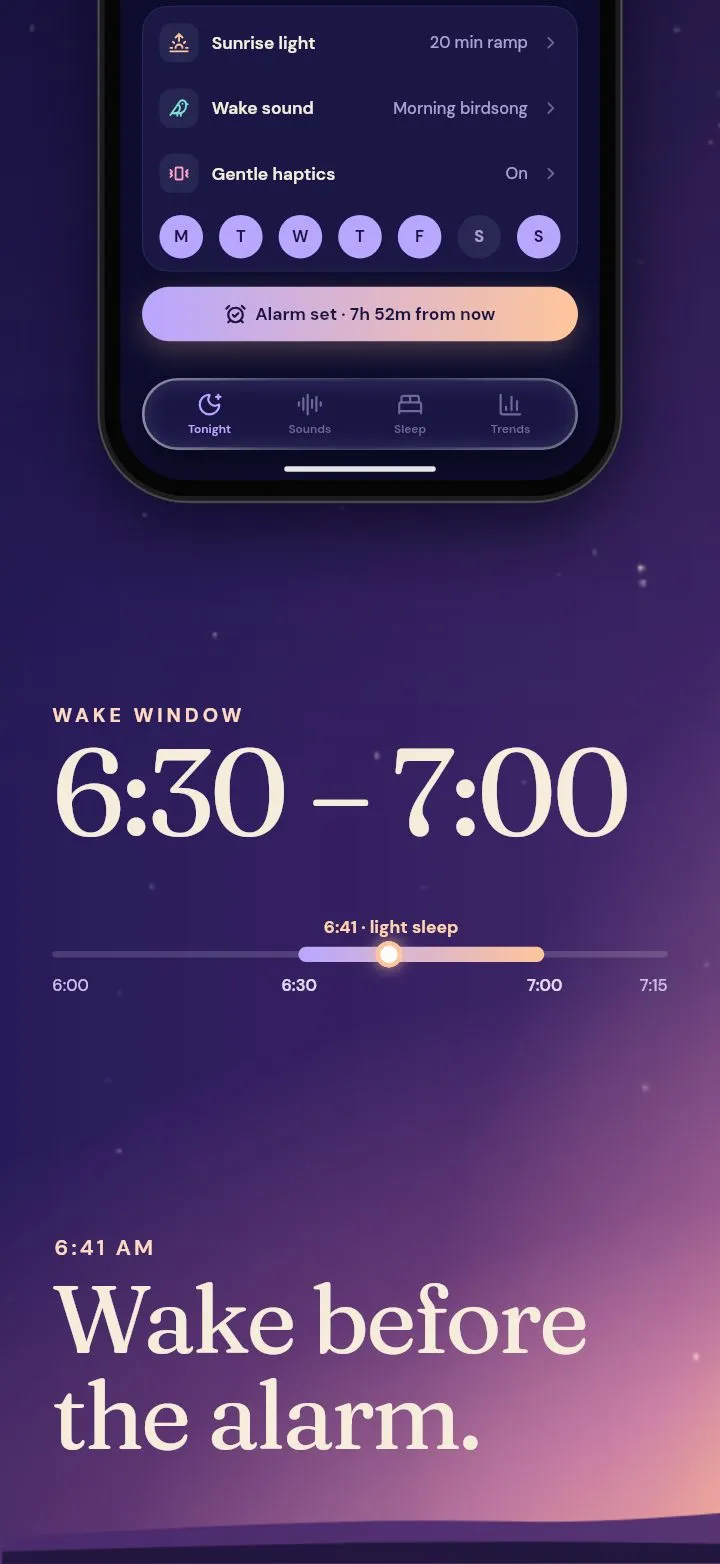
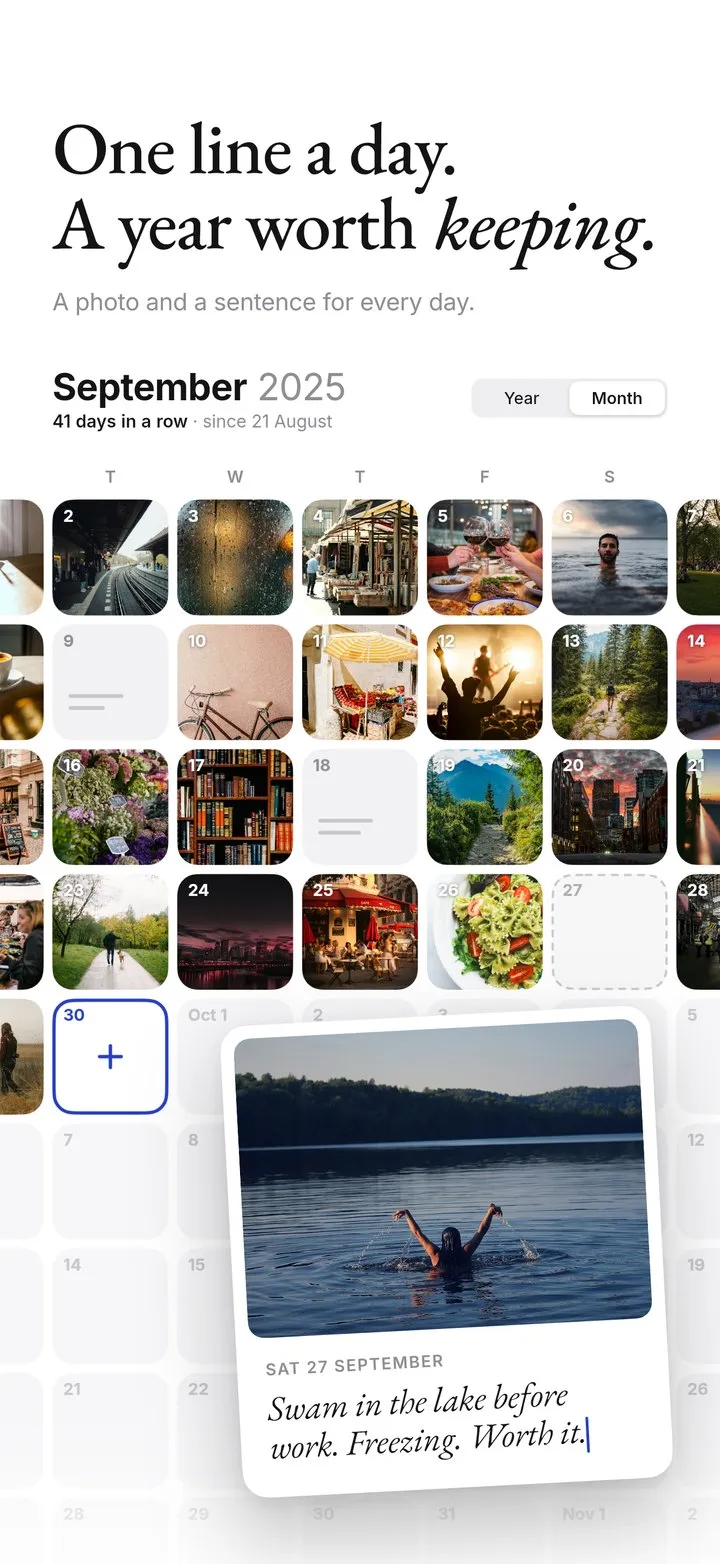
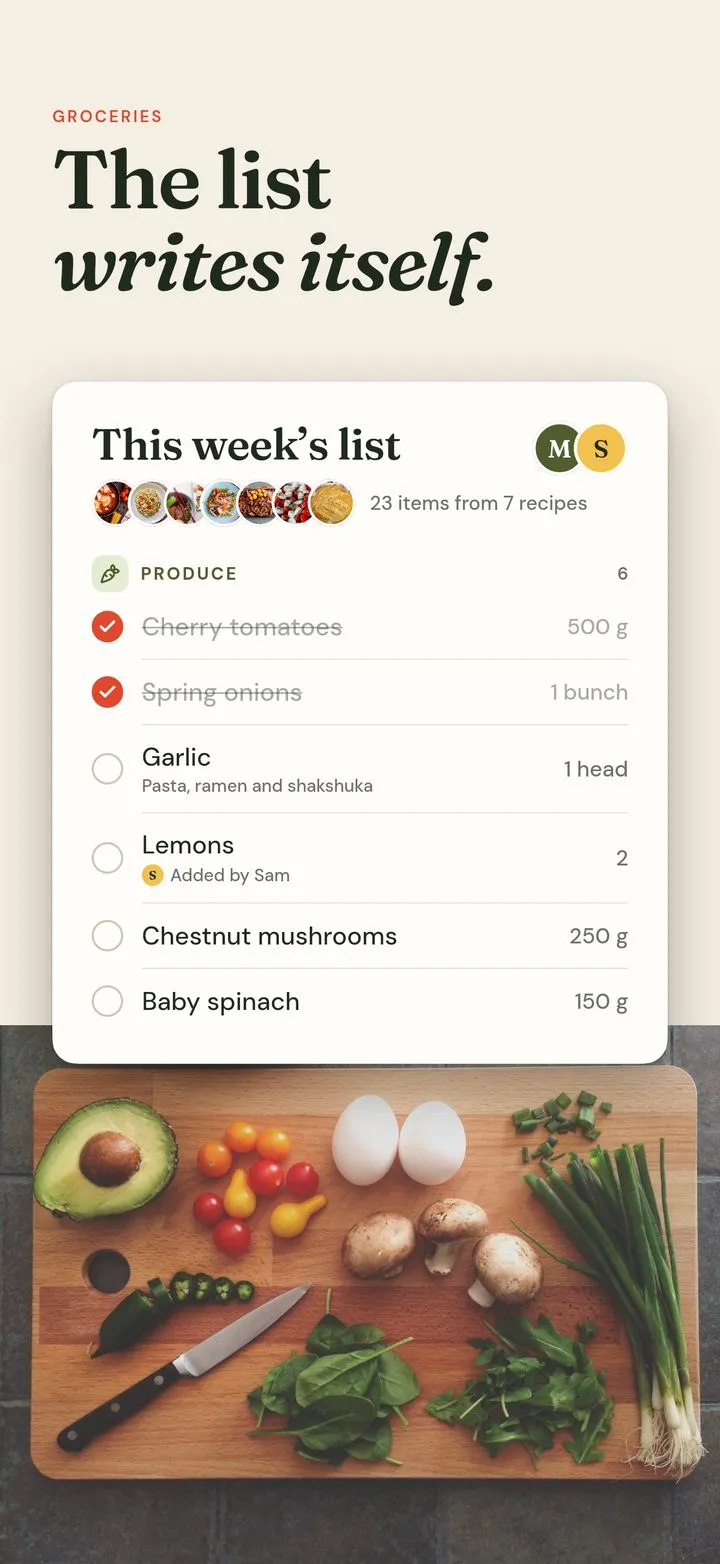
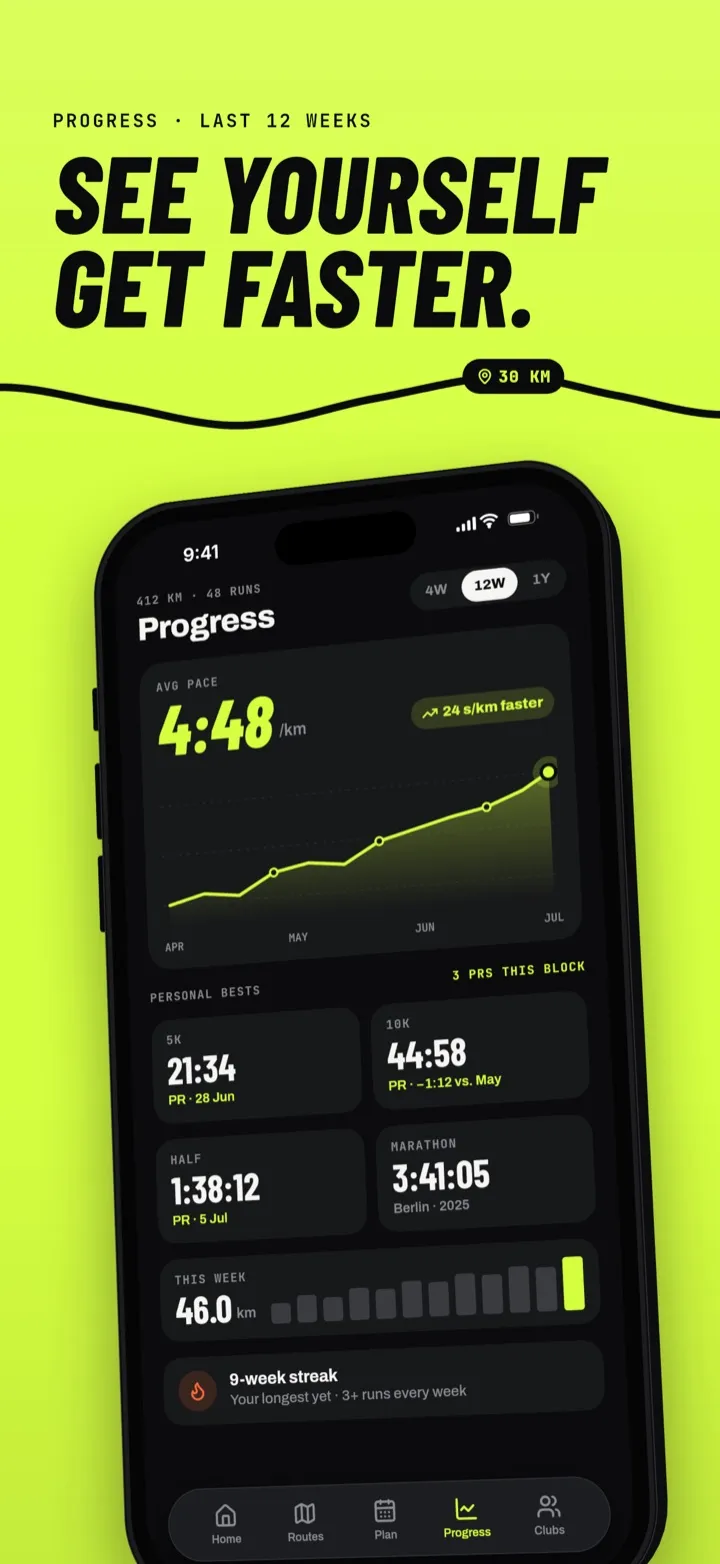
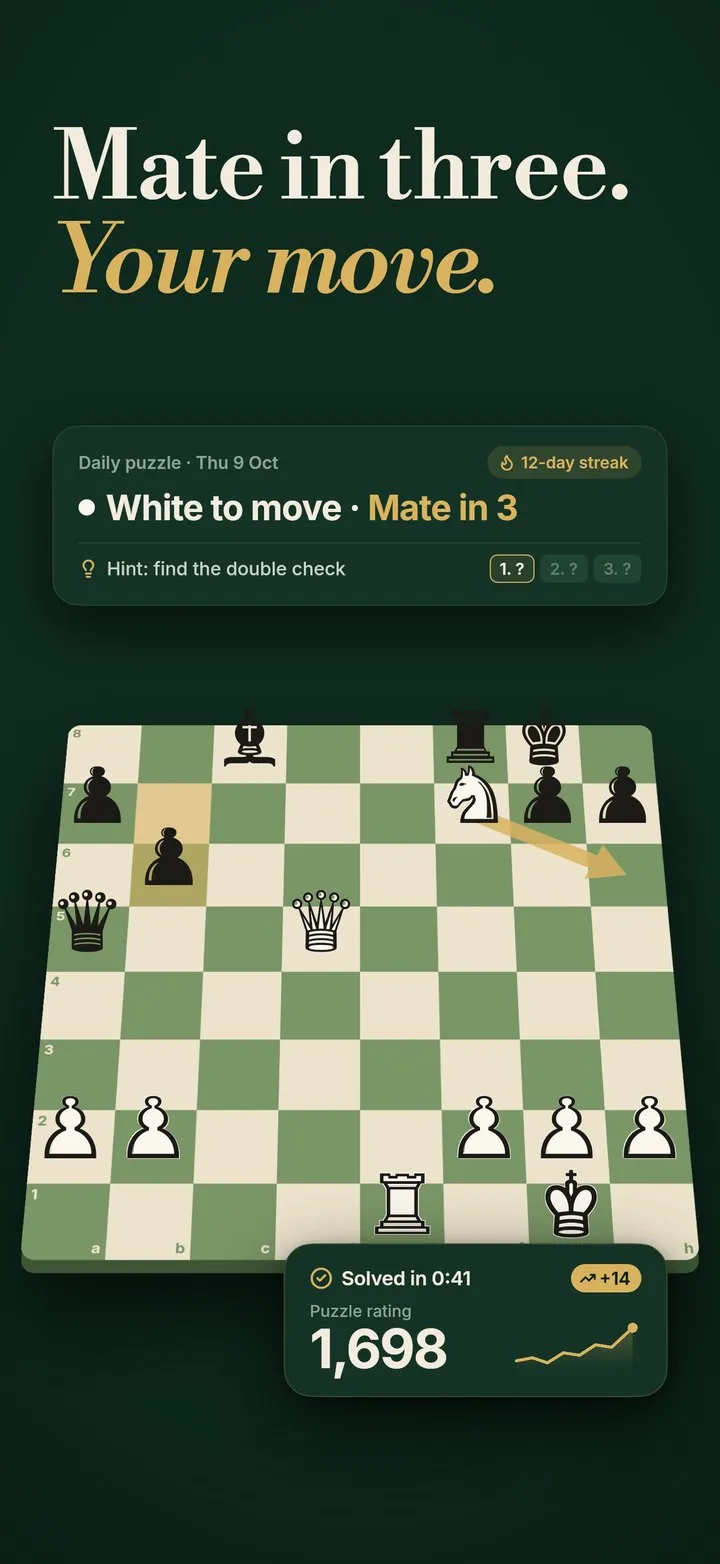
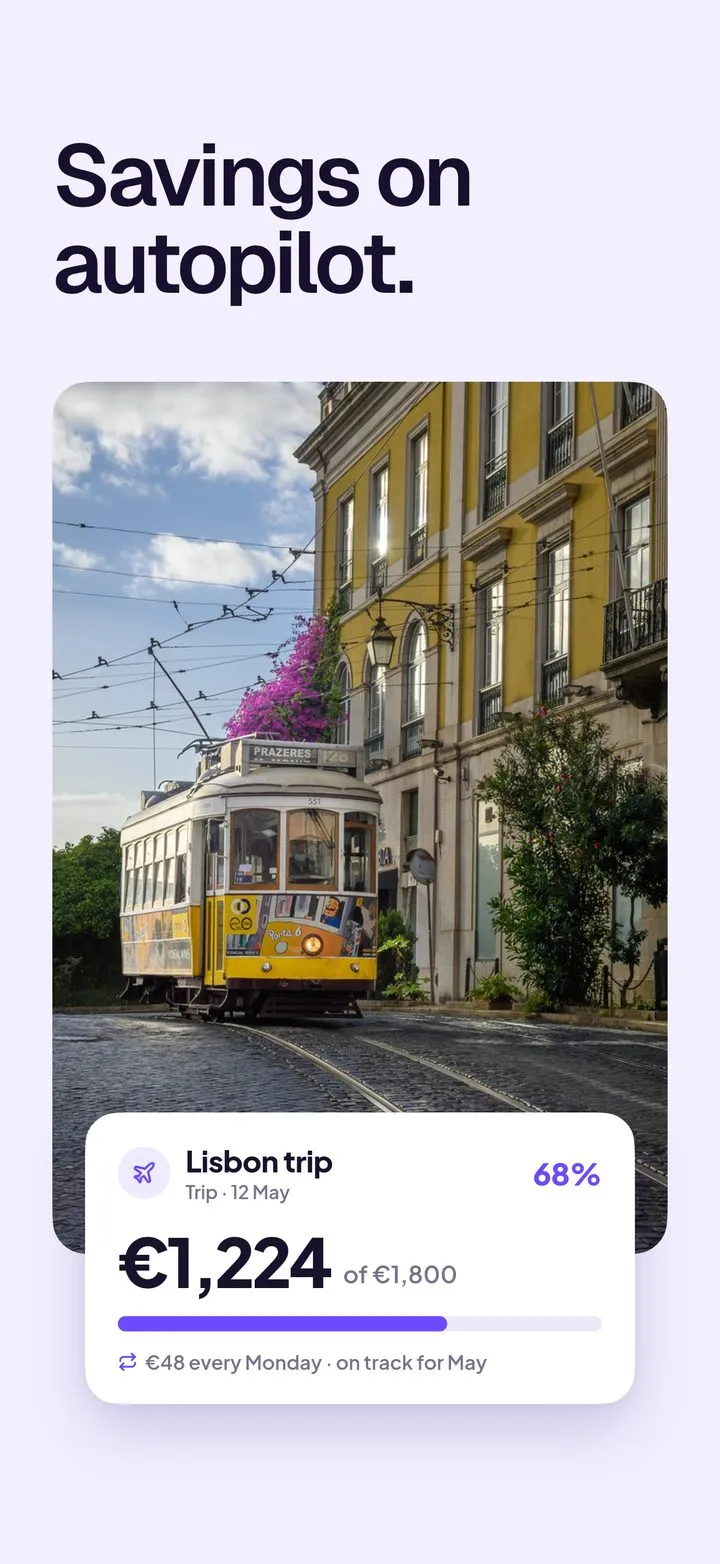
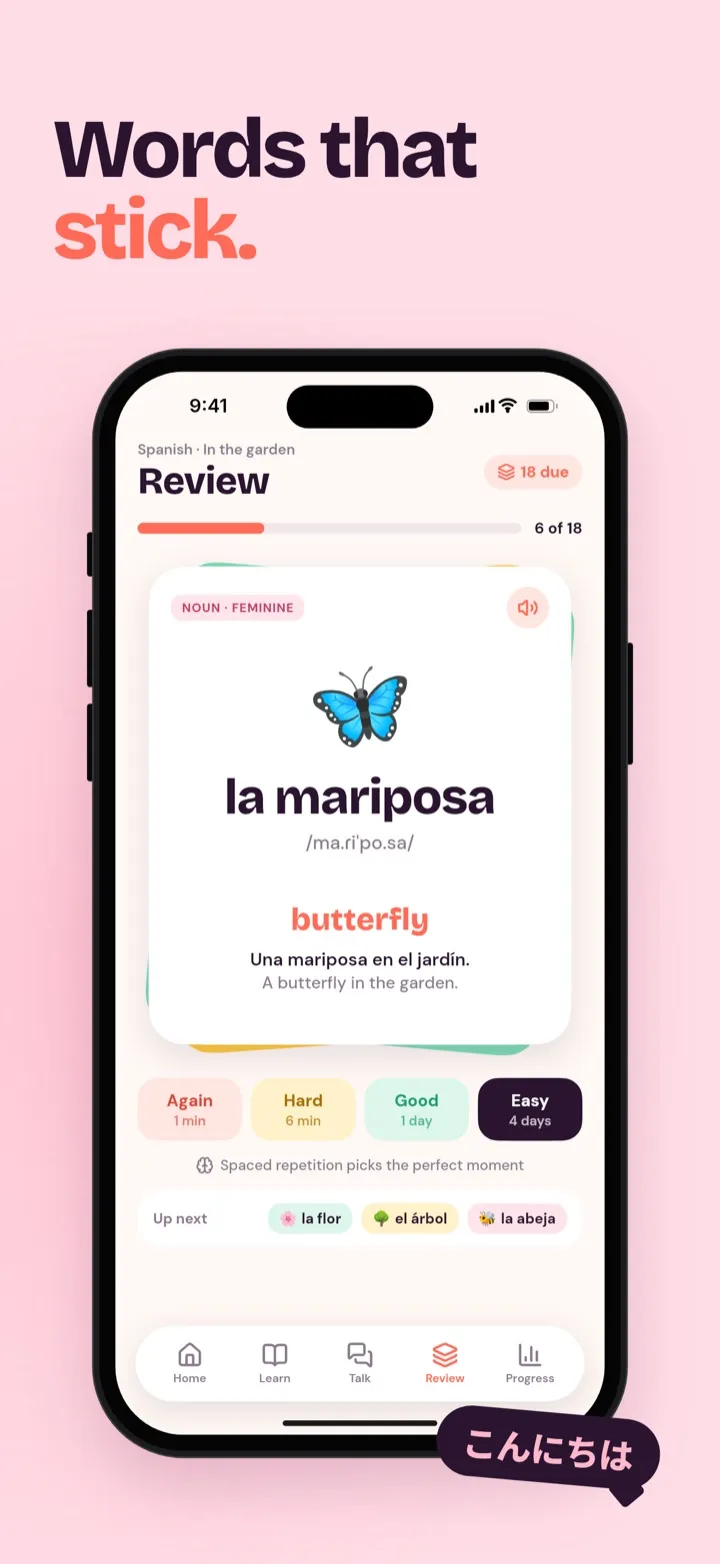
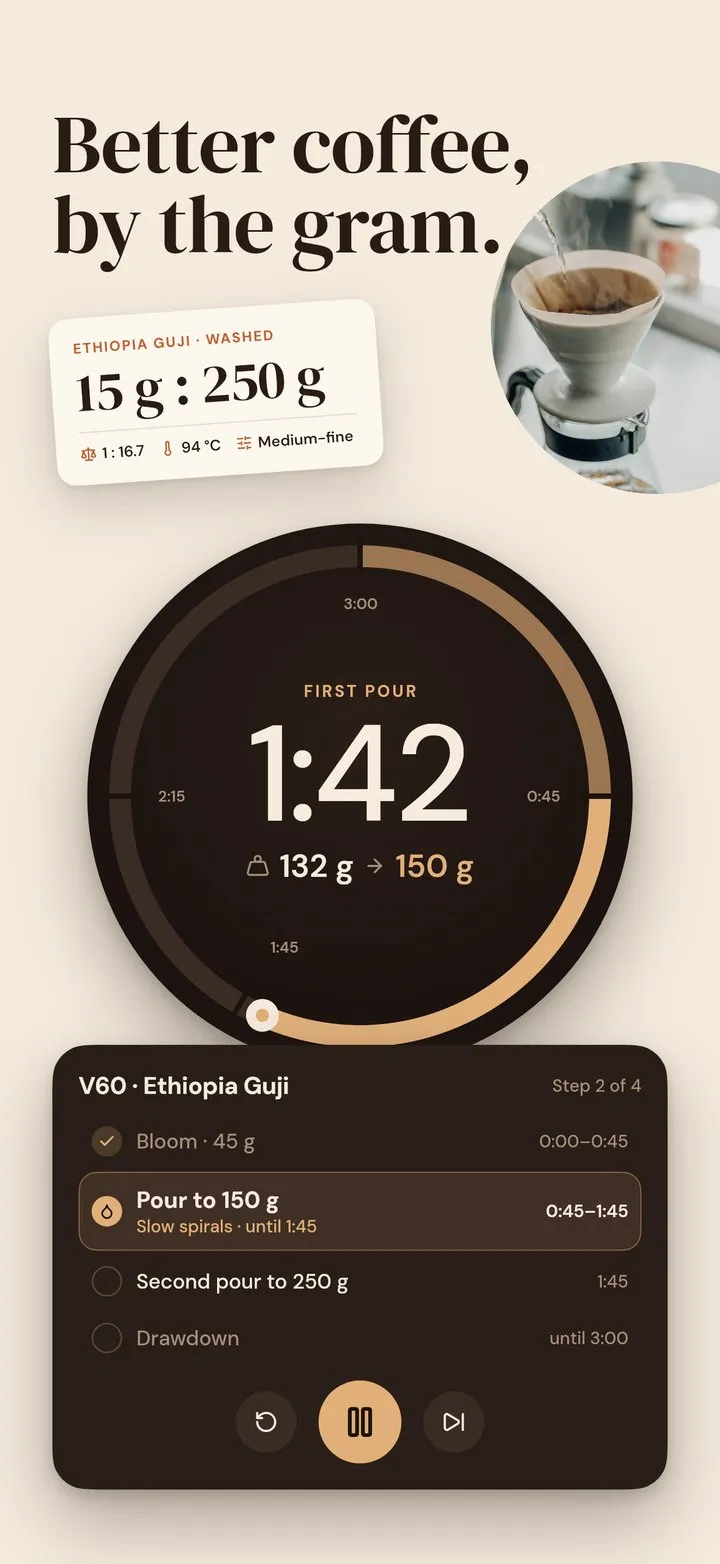

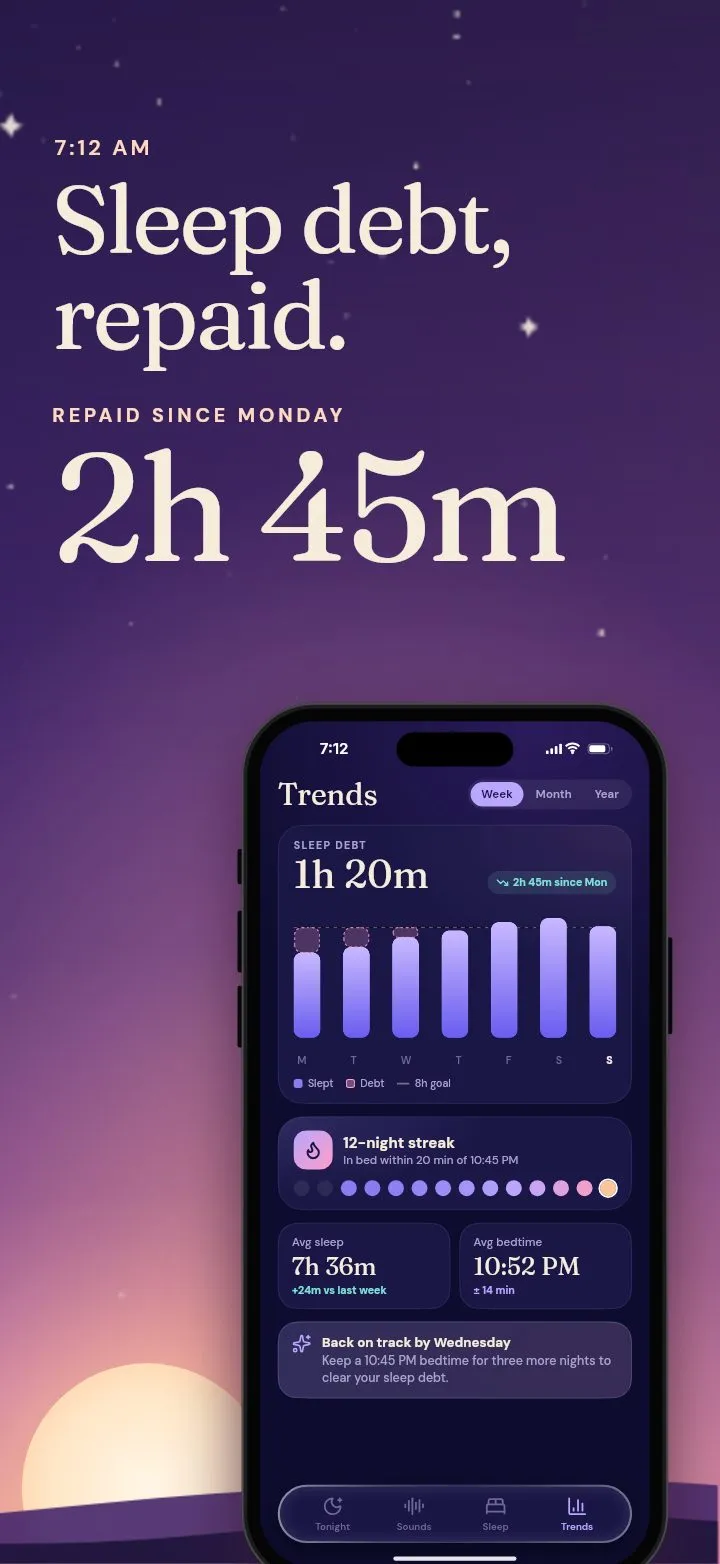
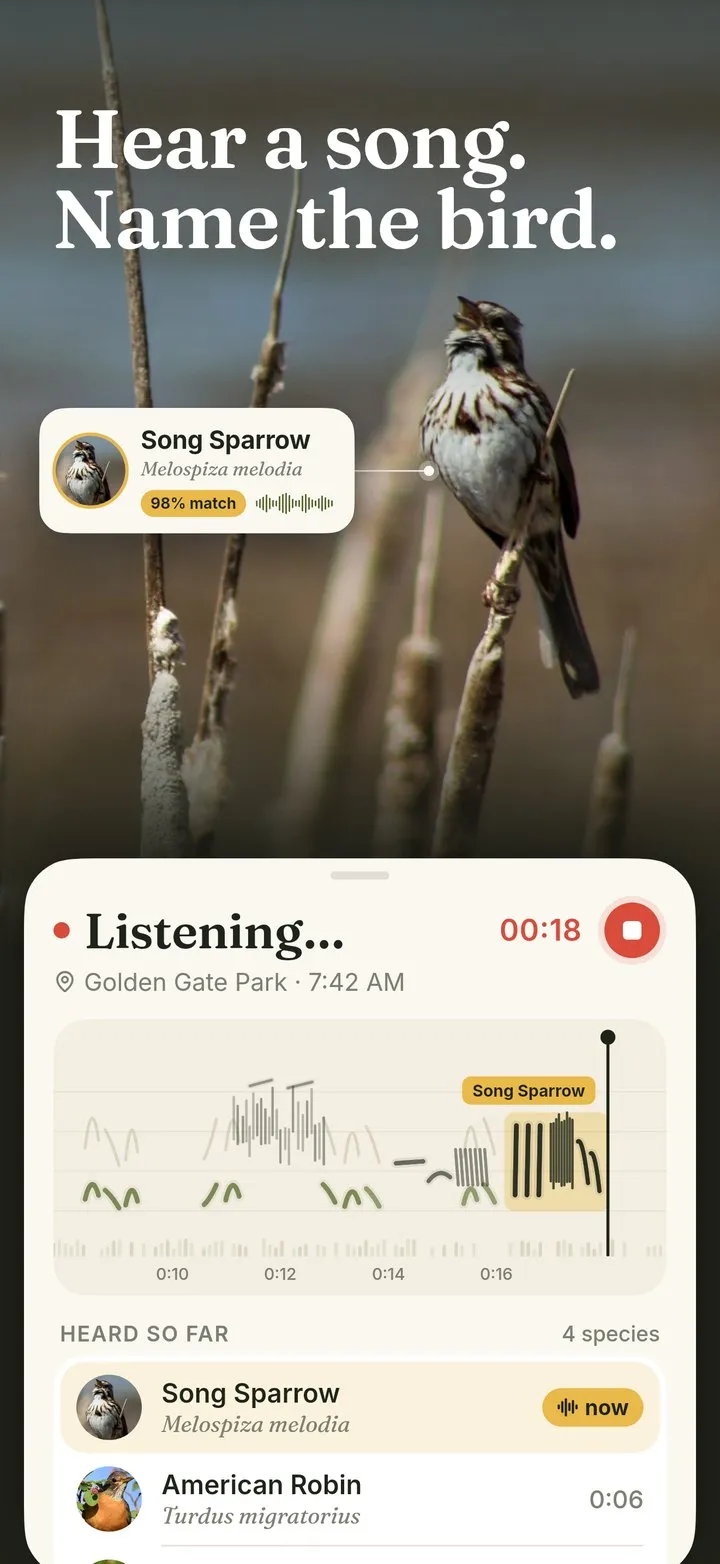
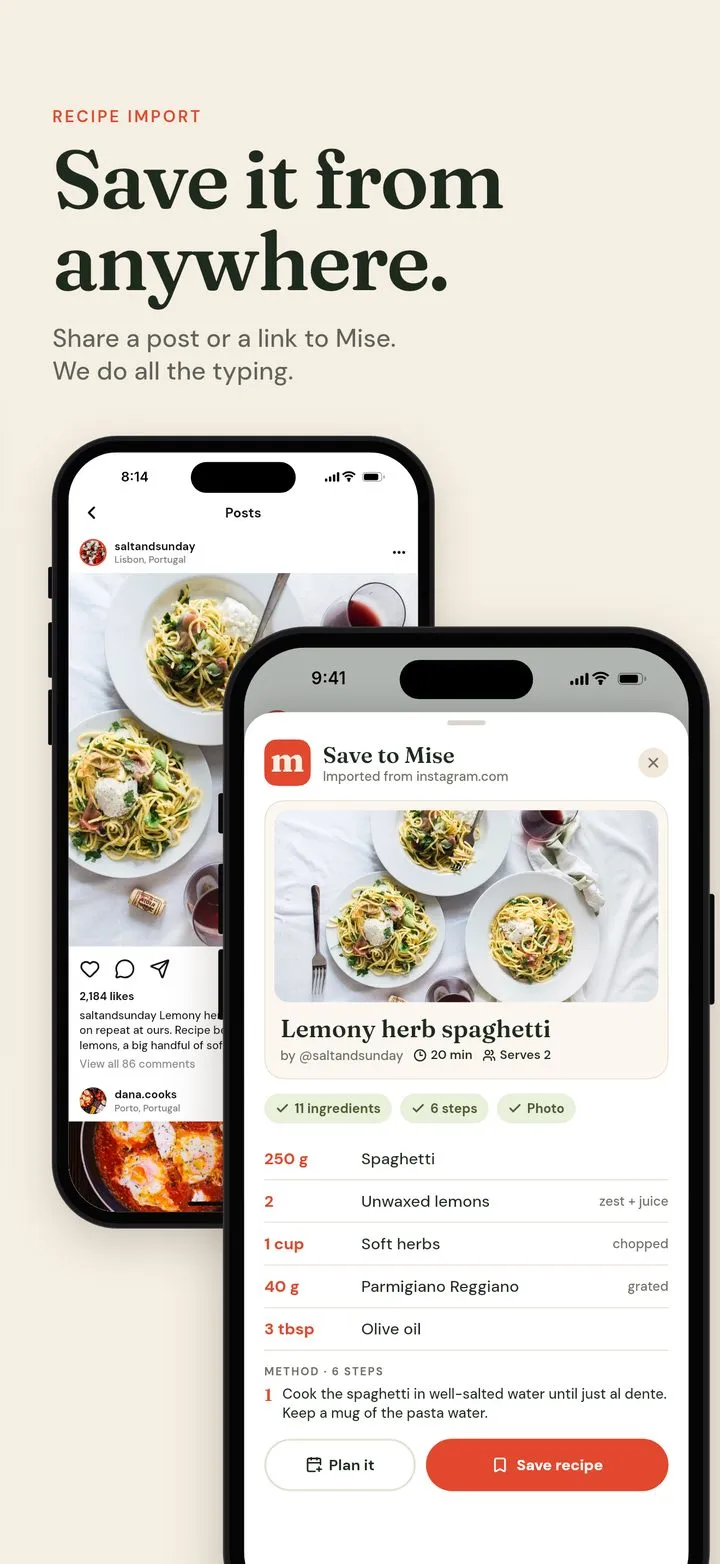
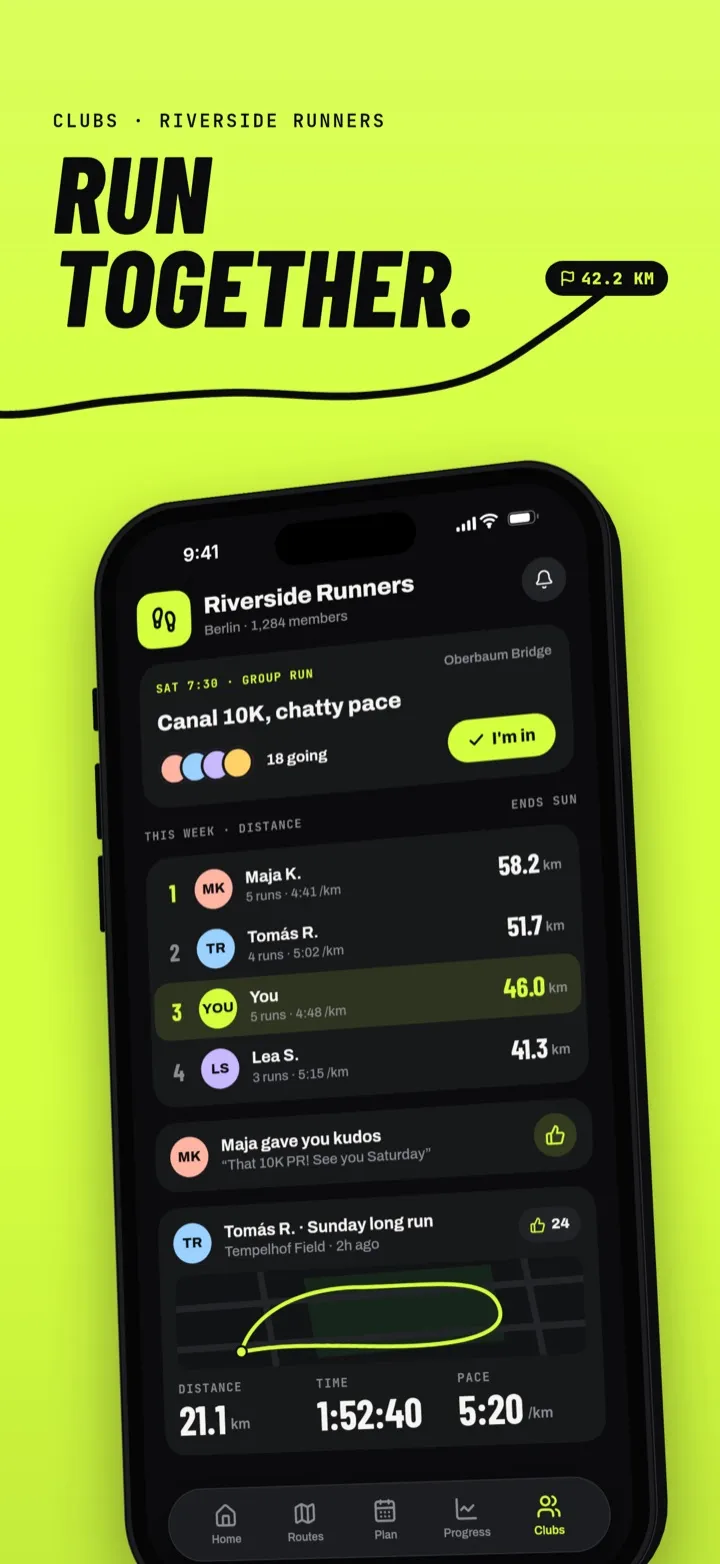
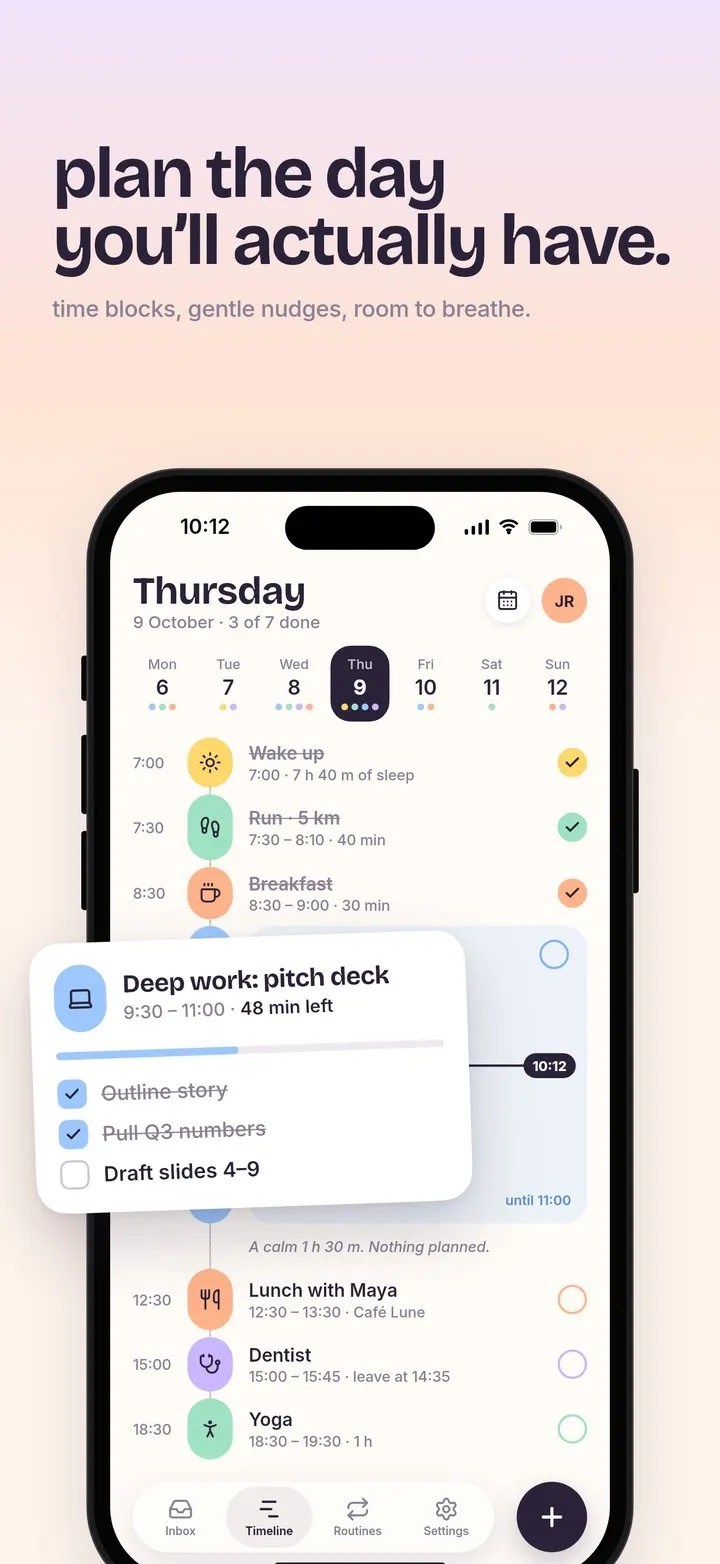
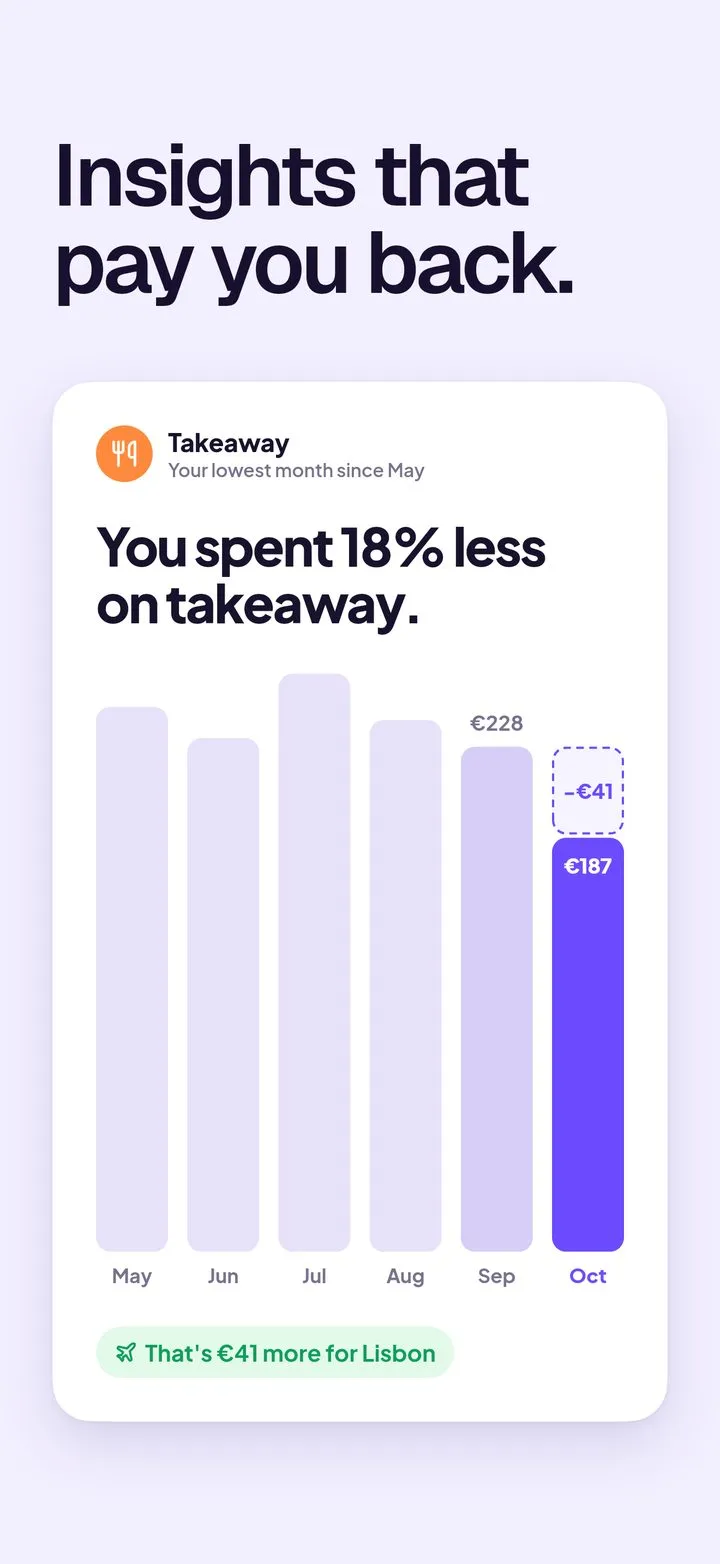
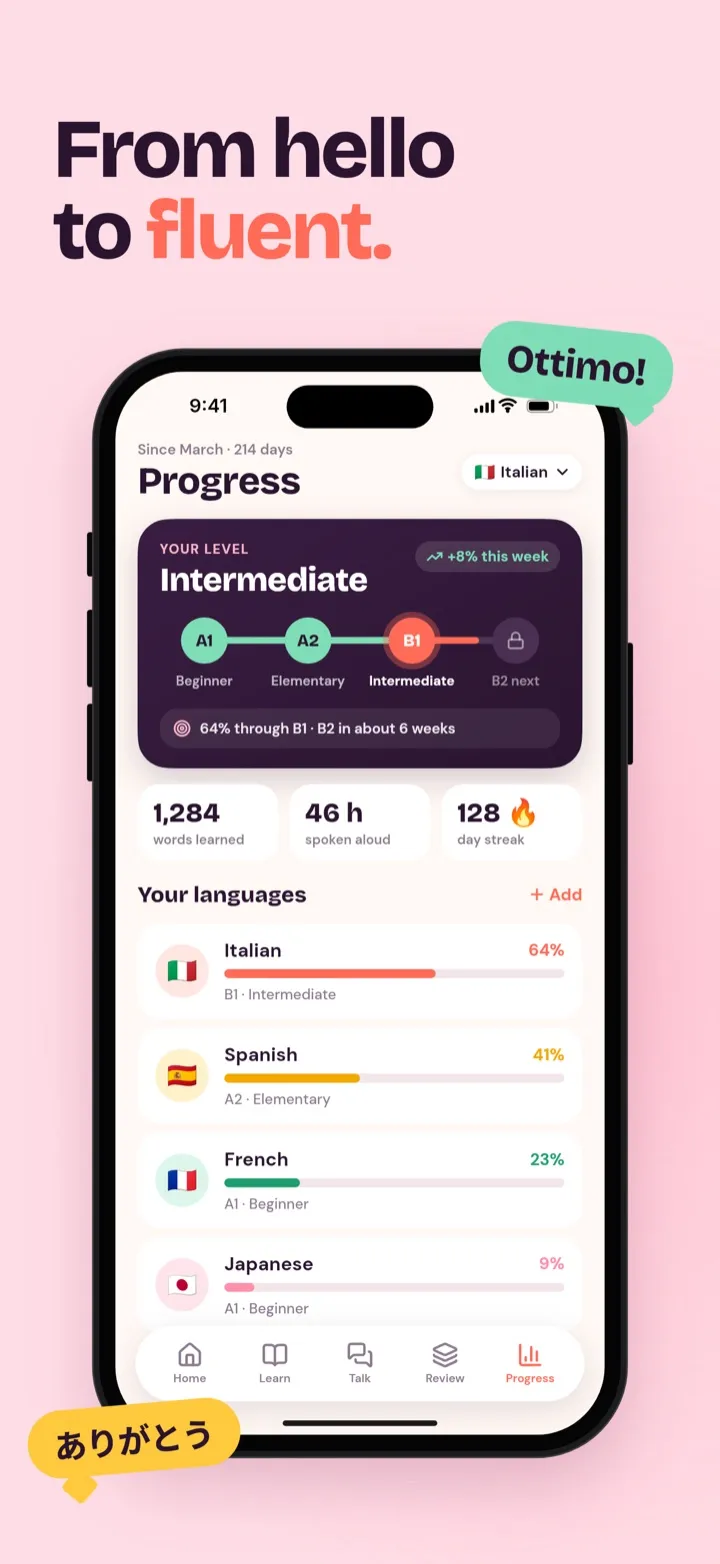
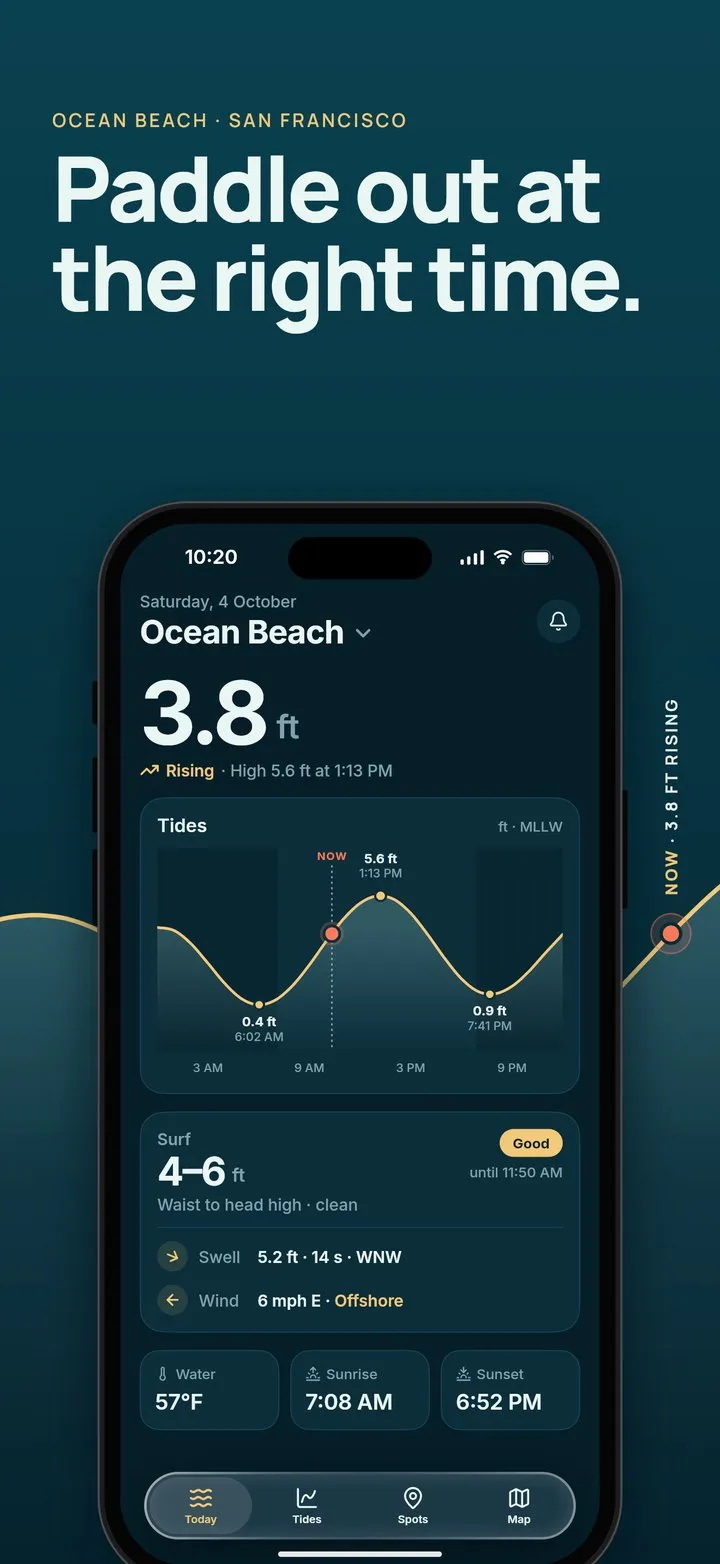
Every screenshot on this page was made by Claude Code in Store Studio. Nothing retouched.
How it works
01
One command adds Store Studio to Claude Code, Codex or Cursor. You sign in through the browser, so there's no token to copy.
02
Point it at your repo or your store link. It picks up your colours, copy and screens and designs the set while you watch it happen live in the studio.
03
Change anything by hand on the canvas. Then download one zip with every size each store asks for, checked before you upload.
Features
Screenshots, icon, splash screen and feature graphic share one set of colours and fonts, so your listing looks like one app.
Sets for iPhone, iPad, and Google Play phones and tablets. Real device frames, 3D tilt, Liquid Glass, and panoramas that run across slides.
One artboard becomes iOS light, dark and tinted, Android's adaptive and themed icon, and the Play icon.
Light and dark, sized for Expo, Flutter or a native launch screen.
The 1024 × 500 banner at the top of your Play listing, in the same style as everything else.
Ask for German and it copies the project and rewrites every line, down to the text inside the phones.
Keep alternative screenshots, icons and splash screens side by side, and switch the one in use.
Layers, auto layout, components and colour tokens, with any Google Font or your own. Edit anything the AI made.
Snapshots as you work and named versions. Restore any of them.
See your listing in App Store and Google Play search before you upload.
Flags “#1”, award badges and other claims Google Play rejects.
Extra screenshot sets export to their own folders, ready for store tests.
Circles, underlines and arrows that stay attached to their words.
Pull a detail out of a screen and enlarge it beside the phone.
Your assistant finds free photos and keeps their credits.
iPhone, Android phone and iPad, with status bar and home indicator.
Examples
What people typed into Claude Code, and the files Store Studio exported.
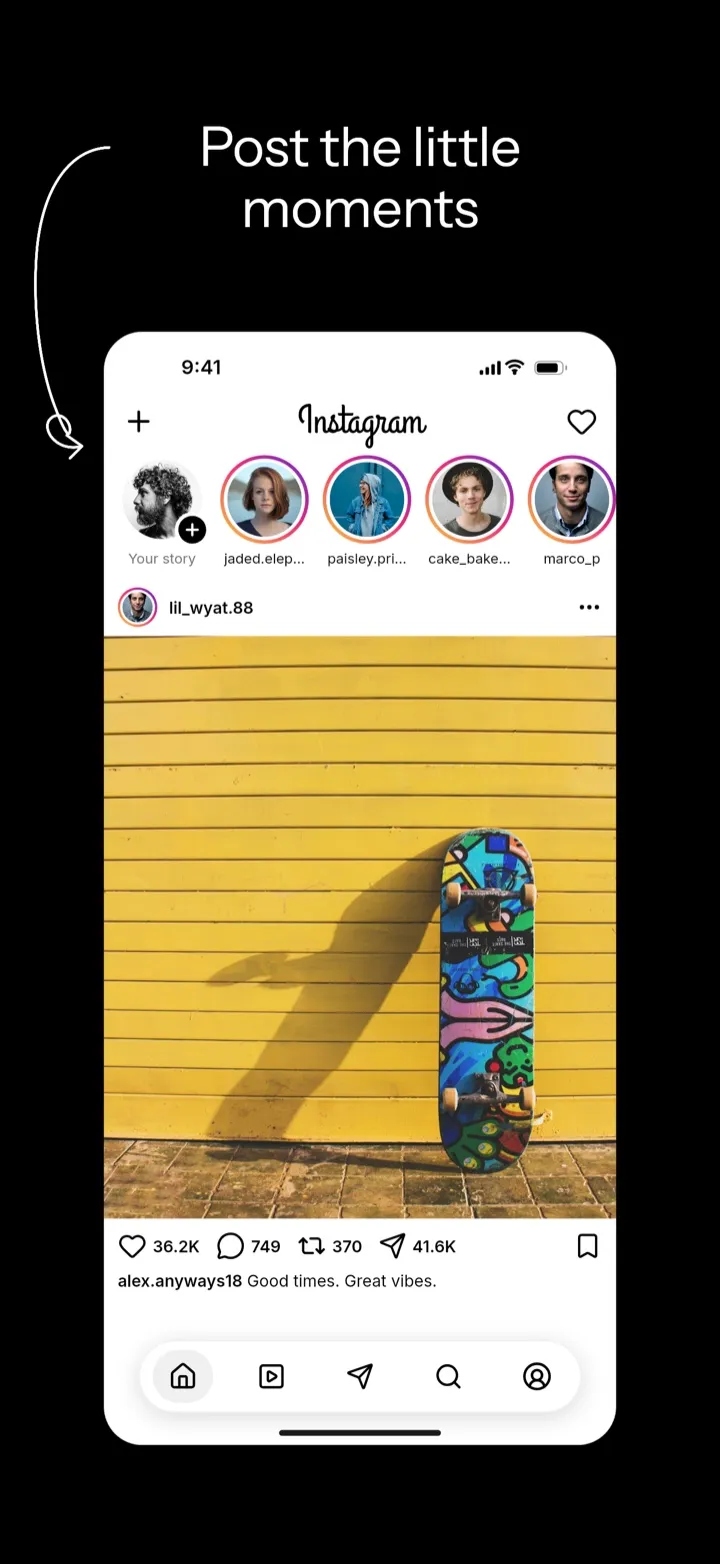
It read Instagram's App Store listing and rebuilt it: the icon, the black slides, the scribbles and every screen inside the phones.


Use Store Studio and recreate Instagram's iOS icon and screenshots: https://apps.apple.com/us/app/instagram/id389801252
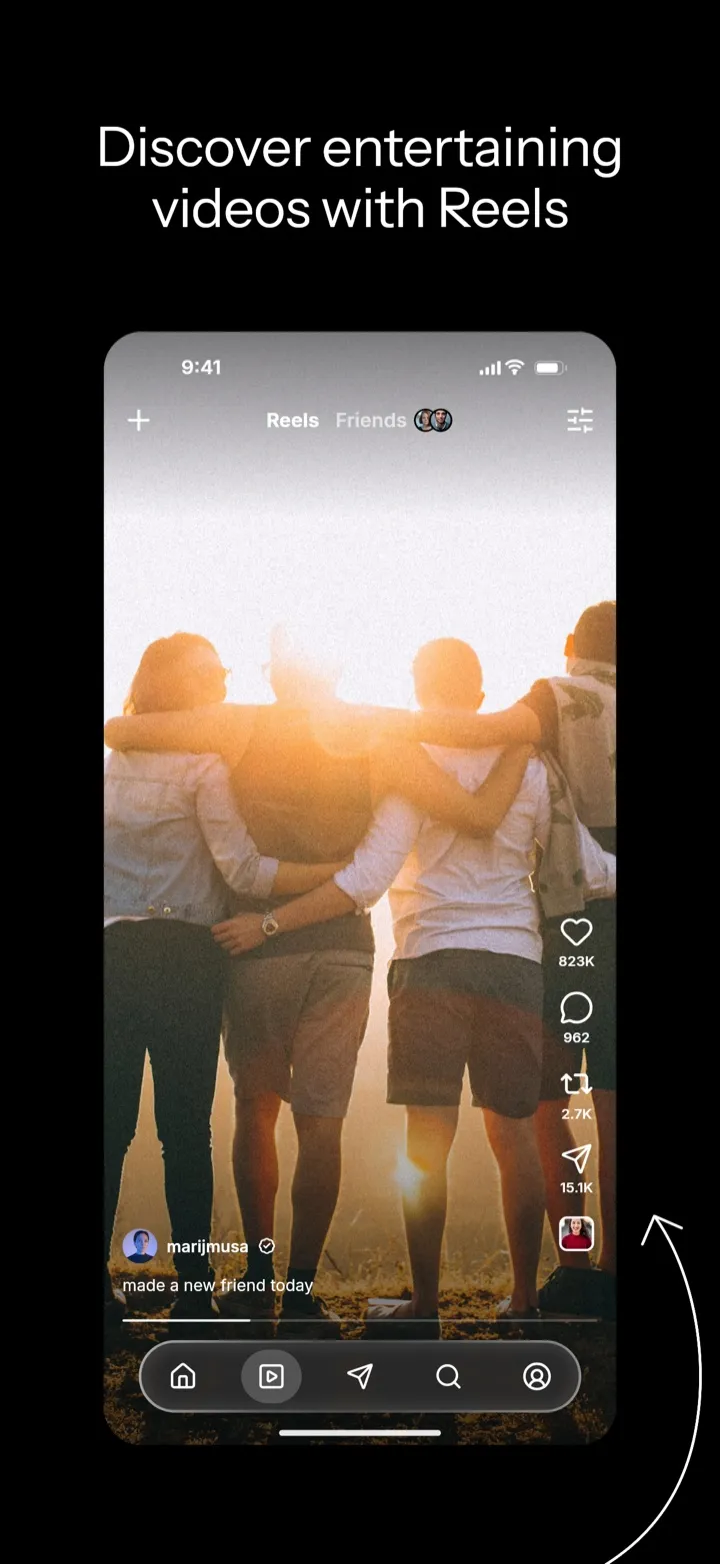
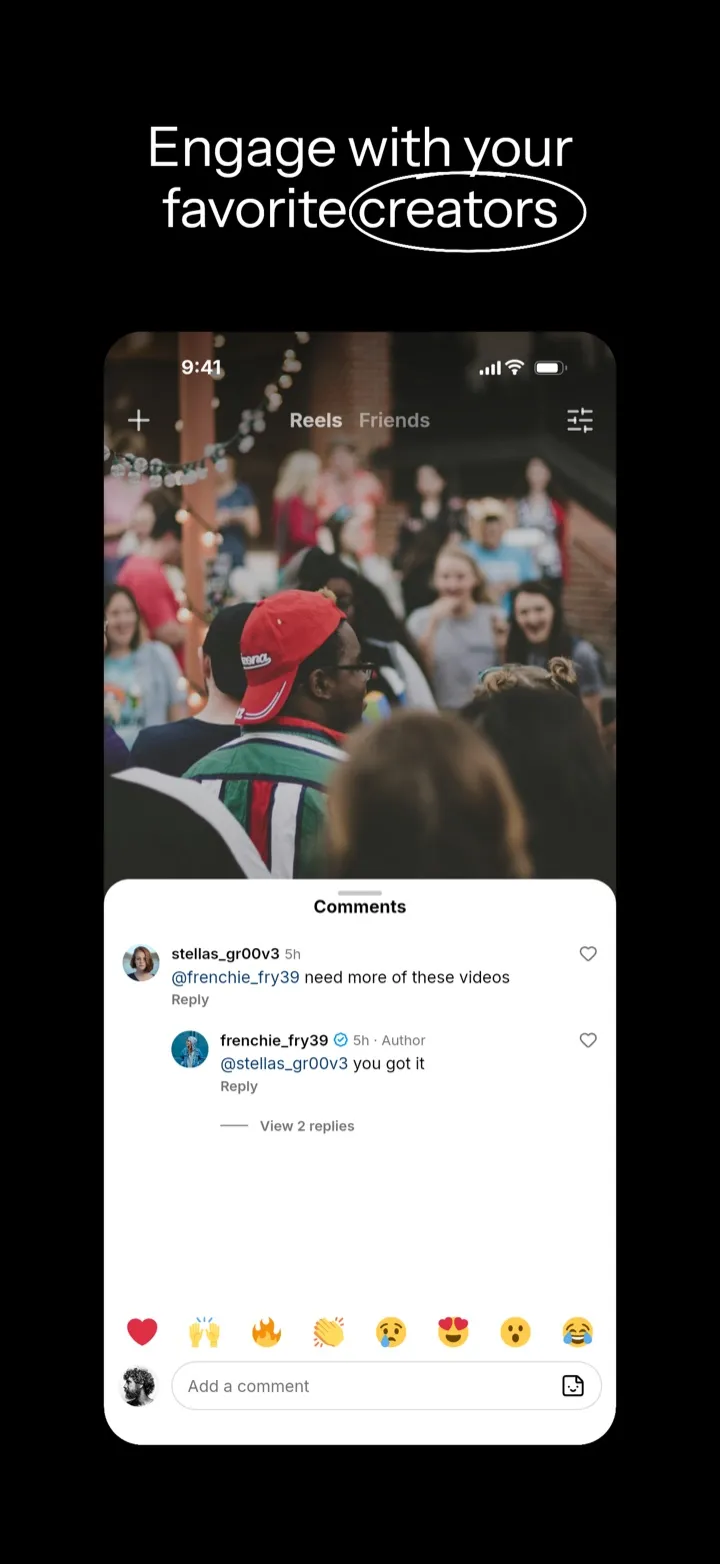
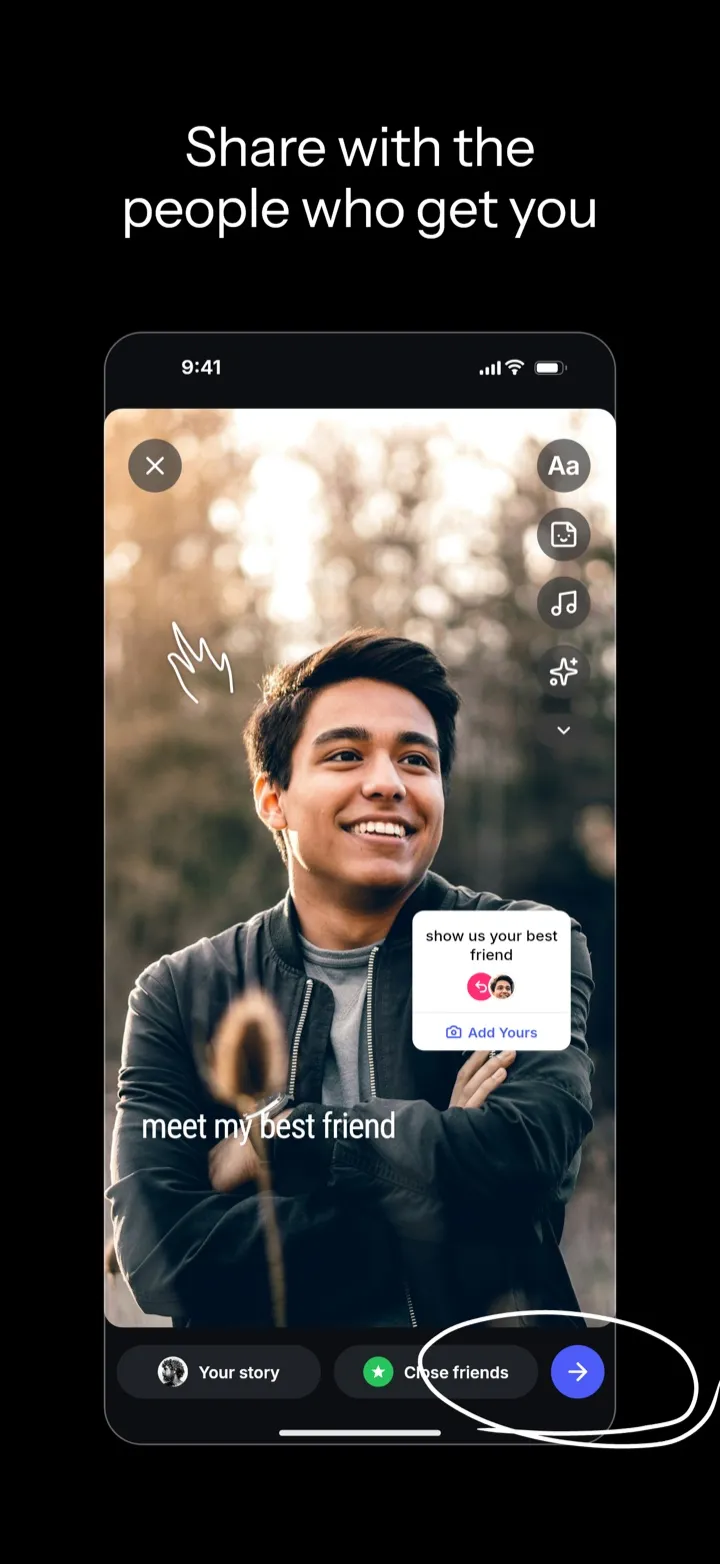
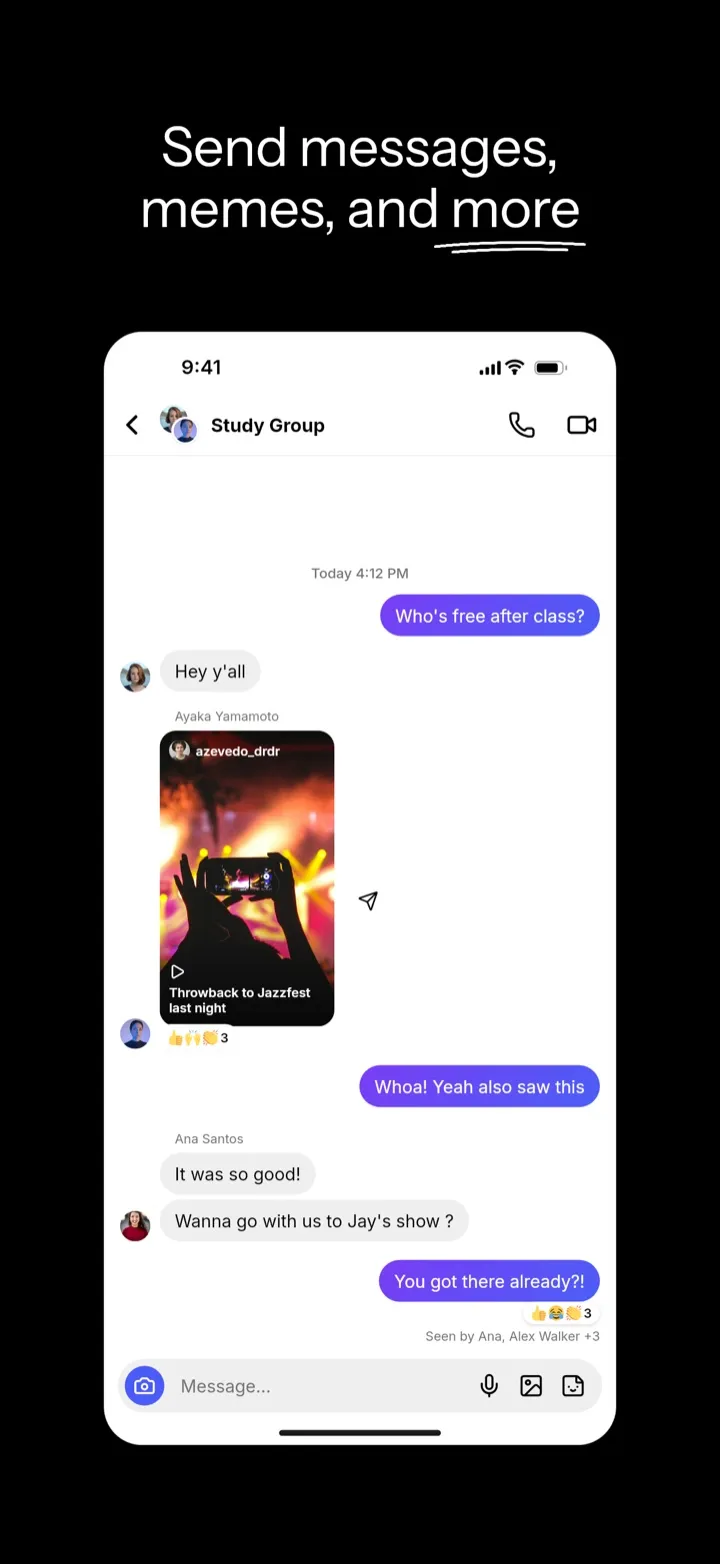
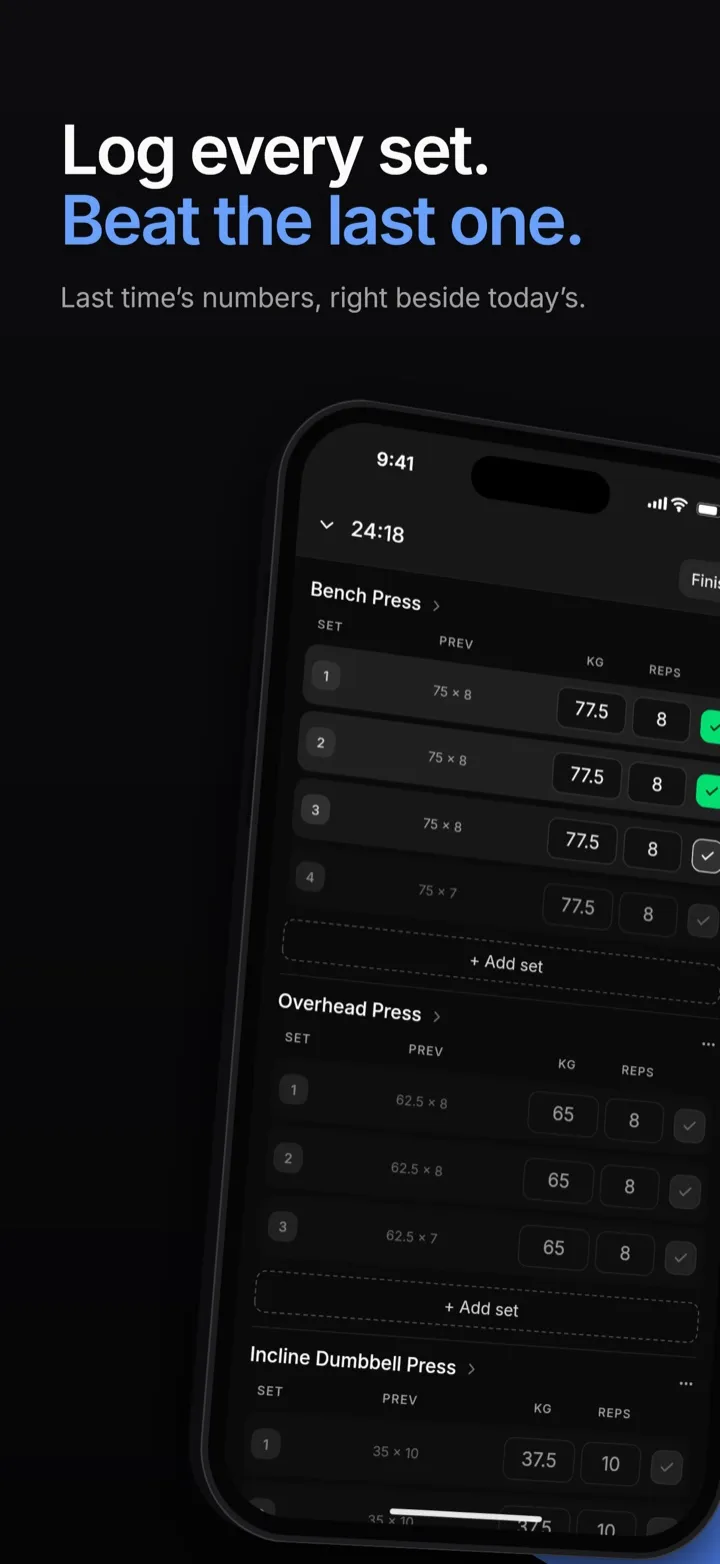
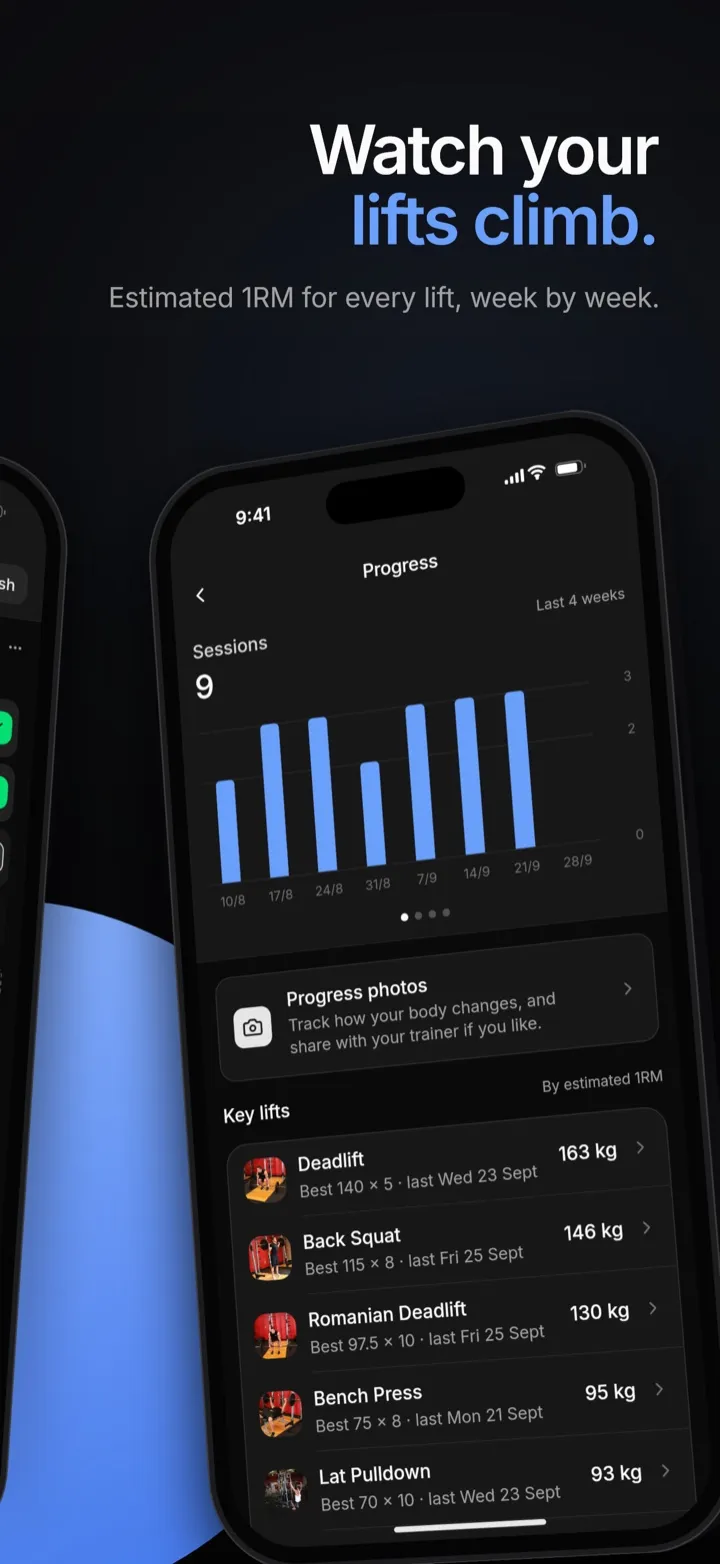
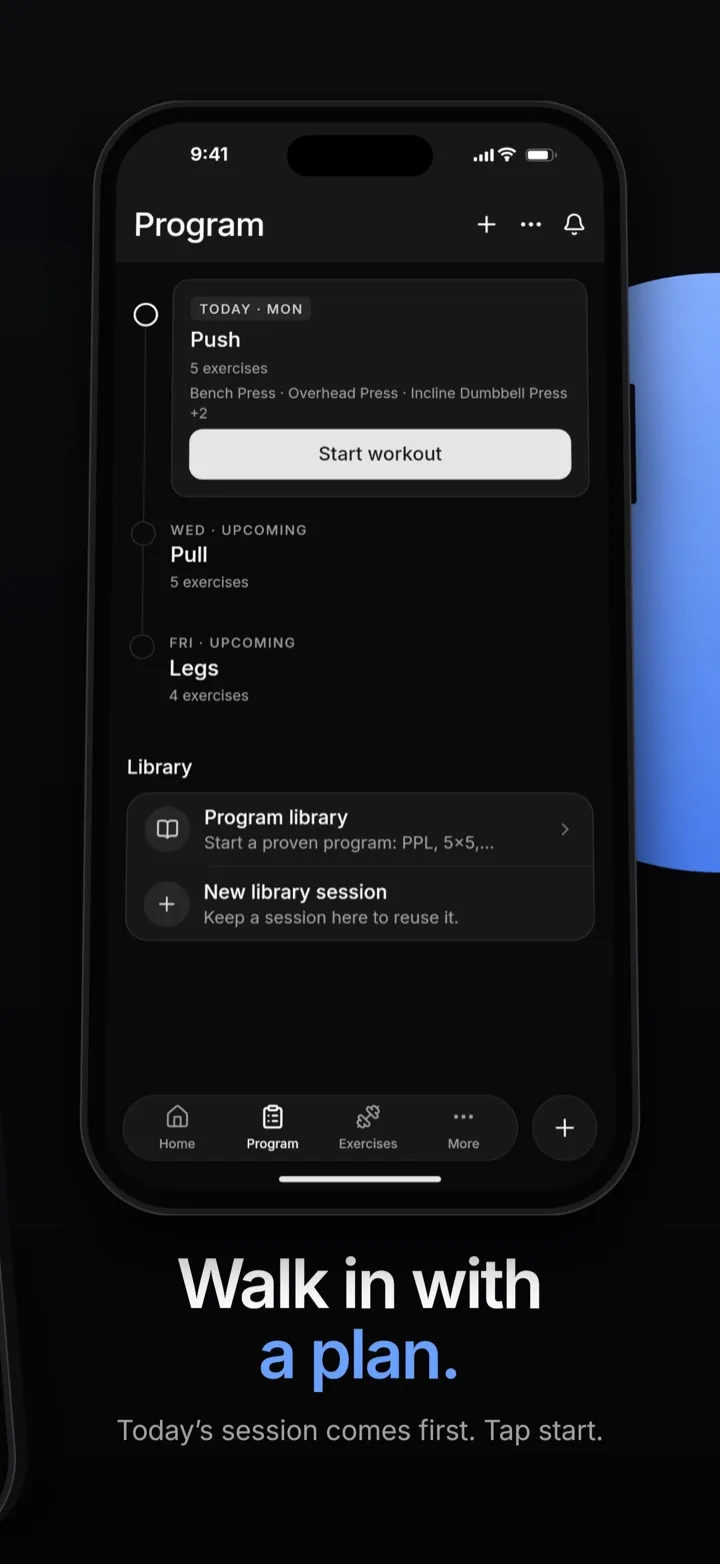
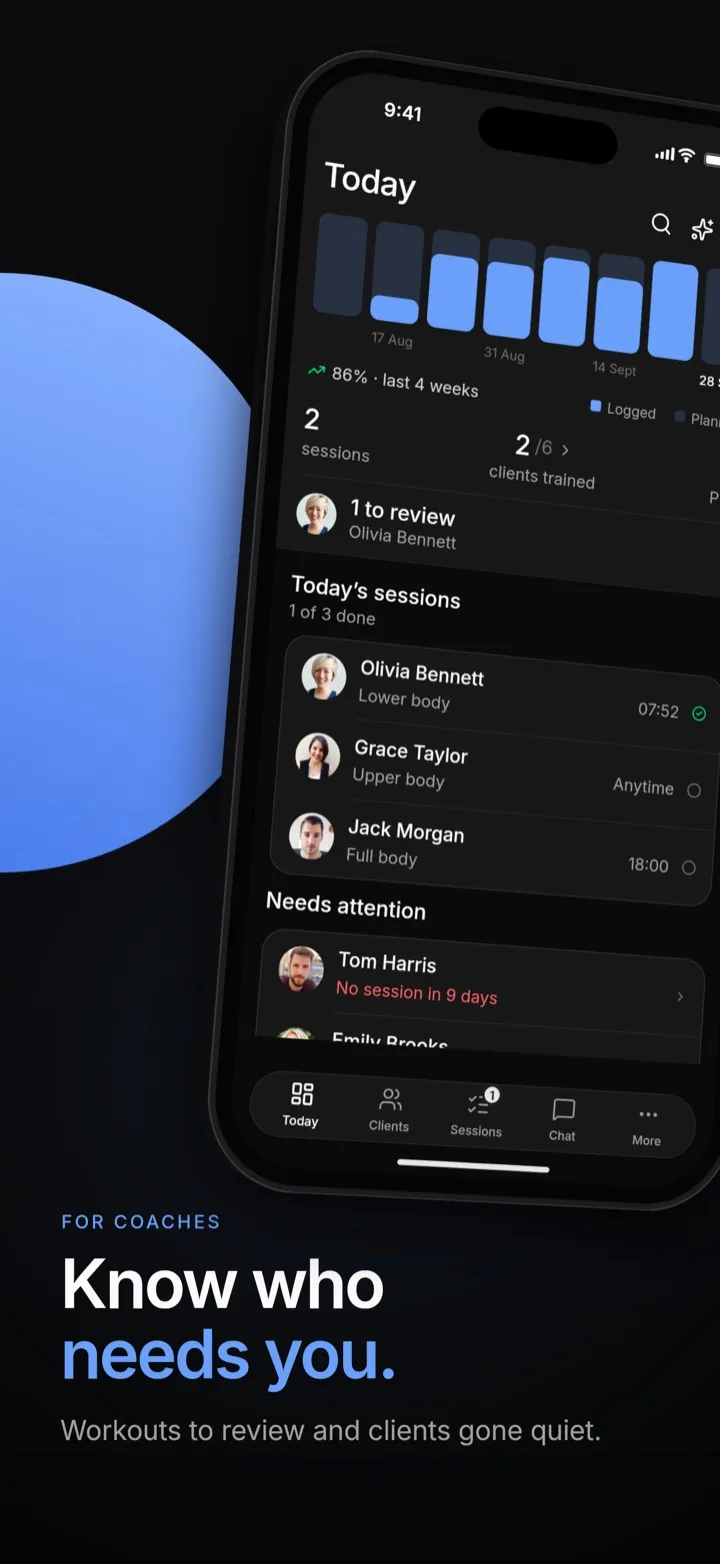
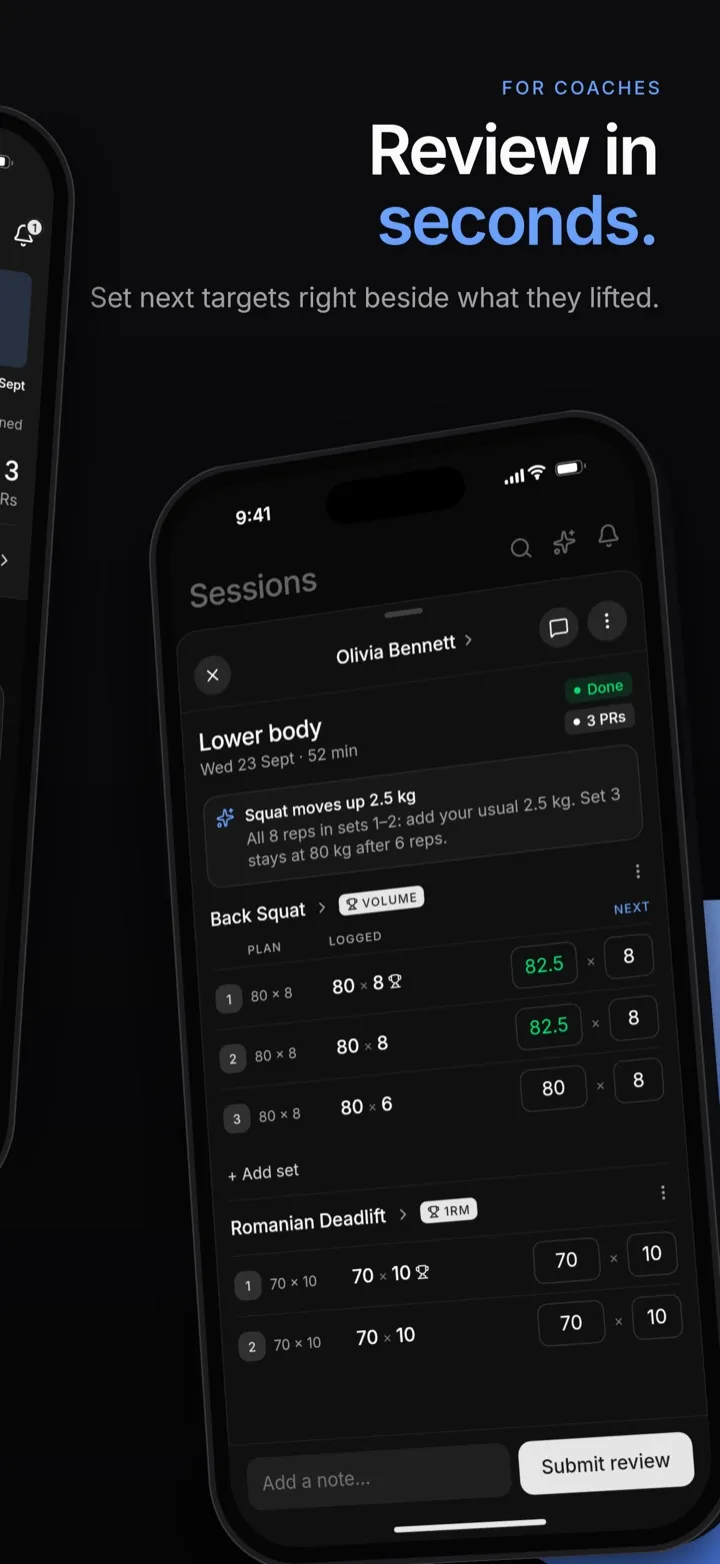
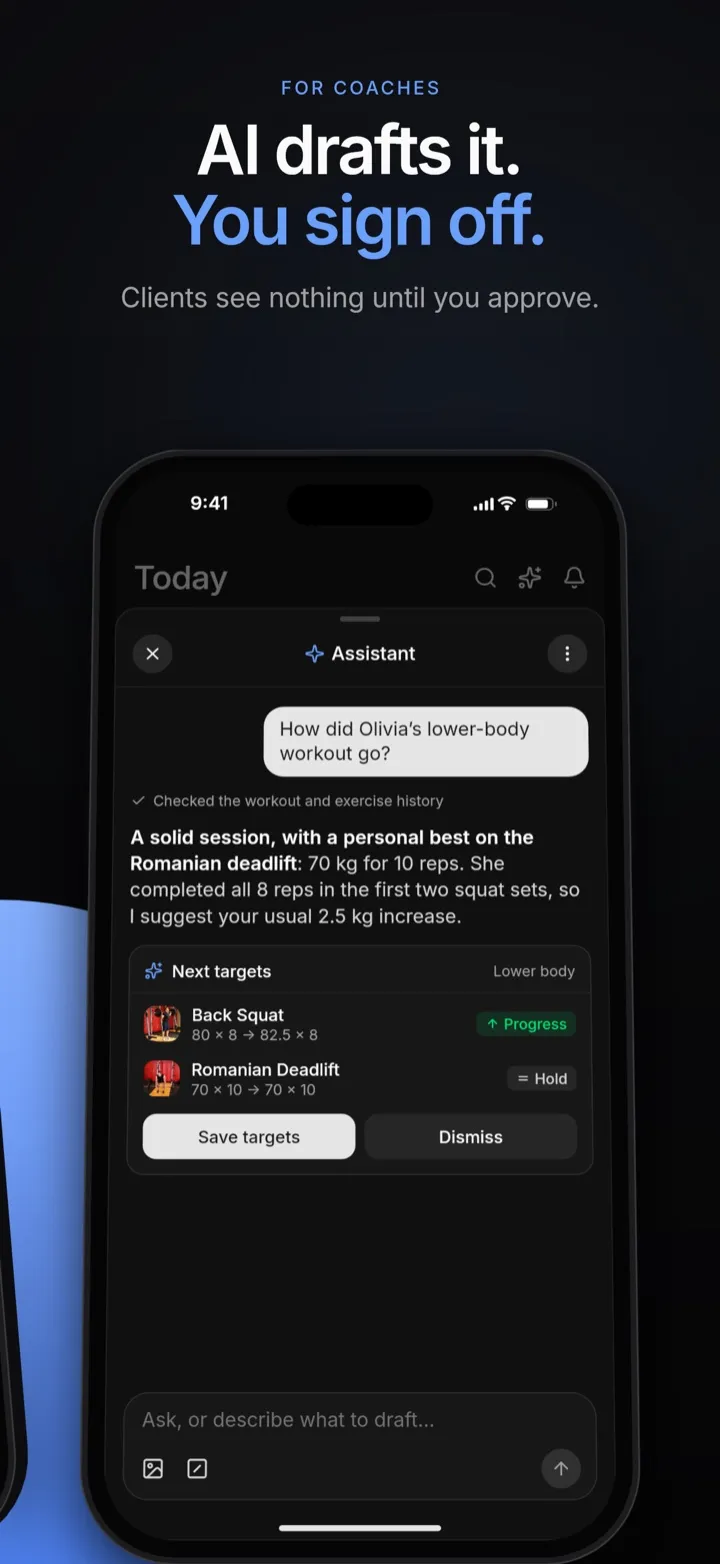
It read the app's code for its theme, copy and screens, rebuilt them inside the phones, and laid the slides out as one panorama.



Check this repo and create the icon and screens for the app. Use the app's colors. I want this style.
Your AI
It gets 43 tools: everything you can do on the canvas, and renders to check its own work. It runs on your own subscription.
claude mcp add --scope user --transport http store-studio https://hearty-poodle-546.convex.site/mcp
codex mcp add store-studio --url https://hearty-poodle-546.convex.site/mcp
{
  "mcpServers": {
    "store-studio": {
      "url": "https://hearty-poodle-546.convex.site/mcp"
    }
  }
}
Sign in through your browser, then ask:
Export
Every required size, checked before you download. Icons and splash screens land where Expo, Flutter, React Native or your Xcode and Android projects expect them.
It comes with a README your assistant can follow to install everything, fastlane included.
Pricing
Store Studio
$9.99/ month
Billed monthly. Or .
$79.99/ year
$6.67 a month, billed yearly. Save 33%.
Your assistant runs on your own subscription.
Included
No. Store Studio is a full design canvas and you can design everything by hand. You can import any app's store listing to look at while you work, too. A few extras go through an assistant: searching stock photos, and comparing against a reference.
Claude Code, Codex and Cursor add it with one command and sign in through your browser. Any other MCP client connects with a personal access token from the studio, read-only if you like.
Not here. Your assistant runs on your own subscription. Store Studio gives it the tools and renders the results.
Yes. Point it at your repo and it reads your theme, copy and screens, then rebuilds your UI inside the phones. Or give it your App Store or Google Play link and it imports the listing to start from.
iPhone 6.9″ (1320 × 2868) and iPad 13″ (2064 × 2752) for the App Store, phone (1080 × 1920) and tablet (1440 × 2560) for Google Play, Play's 1024 × 500 feature graphic, and the icon and splash screen at 1024 × 1024. Apple scales the 6.9″ screenshots down for smaller iPhones.
Yes. It works on the same canvas you do: every change shows up live, you can edit anything it made, and ⌘Z undoes any of it. If you edit while it works, it sees your changes and won't overwrite them.
Ask your assistant. It copies the project and rewrites every line, including the text inside the phones. Each language is its own project with its own export.
The zip puts them where Expo, Flutter, React Native or a native Xcode and Android project expects them. For Expo it adds the app.config snippet, and a README your assistant can follow to install everything.
Yes. The studio saves snapshots as you work, and you can save named versions too. Restoring one keeps your current state as a version first.
Start from your repo, your store link, or a blank canvas.